 Picmira
AI Baby Photoshoot
One little photo, a whole new moment. Upload your baby’s photo and choose a studio, birthday or seasonal theme.
Features of AI Baby Photoshoot
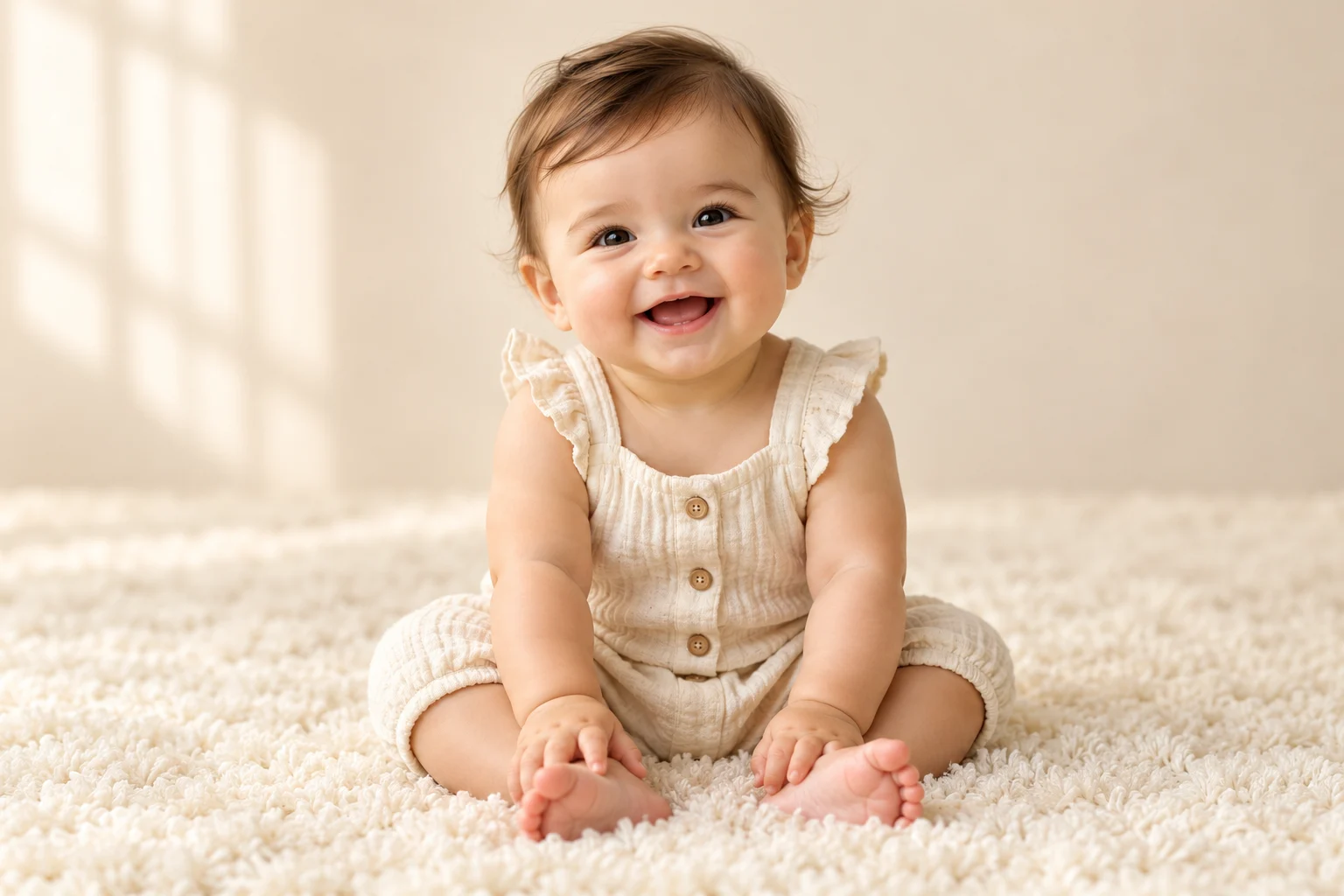
Create an AI baby photoshoot from a favorite everyday photo. Choose a cozy studio setup, a teddy bear companion, a birthday celebration or a seasonal scene. Each theme supplies the setting, outfit and lighting, so you can begin without writing a prompt. Your uploaded photo guides the baby’s appearance, while the selected theme creates a new portrait around them. Add a favorite color or small detail if you want to personalize the scene. Review the finished image before adding it to a family album or sharing it with someone you love.
Start with one baby photo
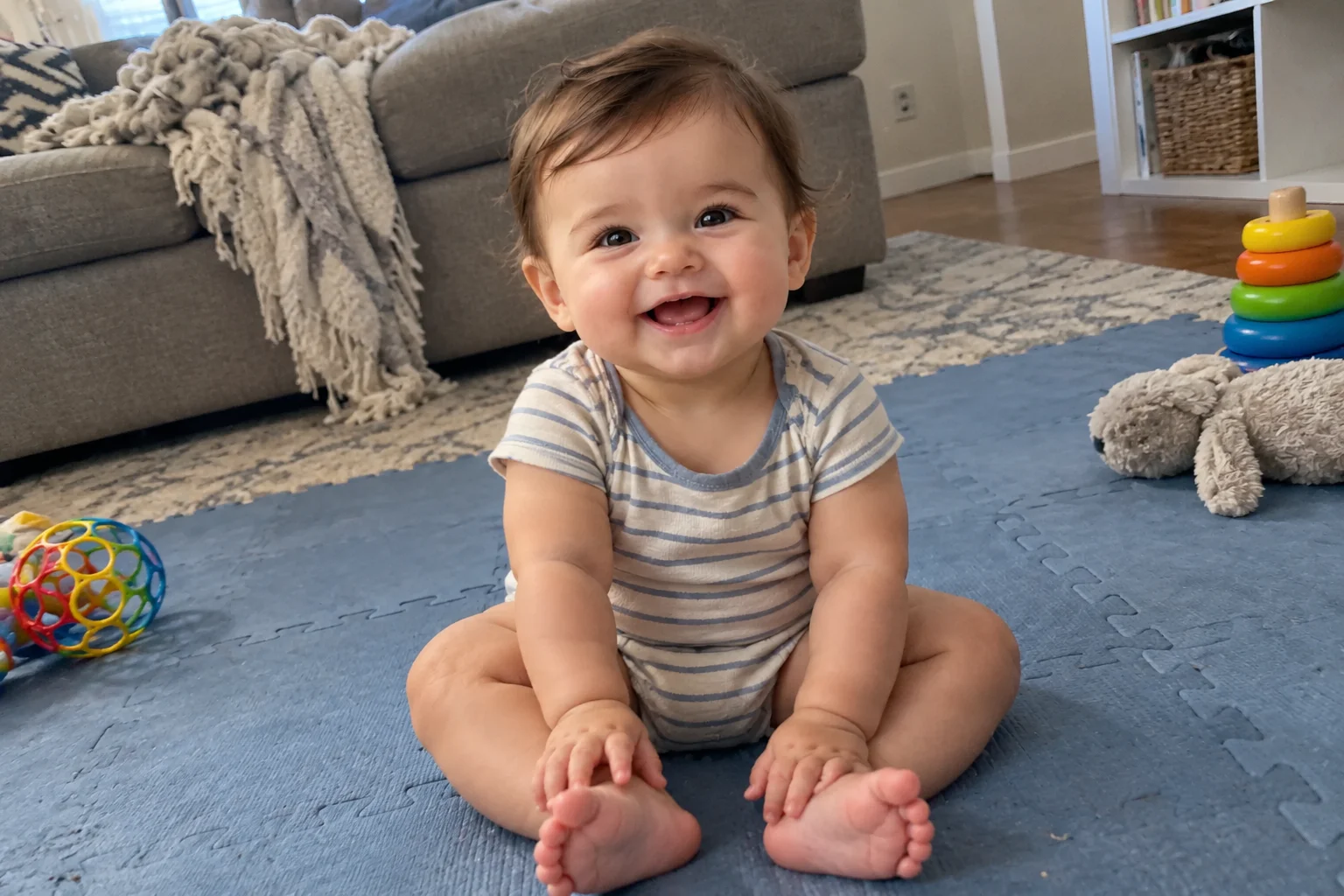
Upload a clear photo with one baby and a visible face. A well-lit everyday picture gives the model a useful reference for facial features, hair and skin tone. The tool asks for the same baby and original age in a new photographic setting. You do not need a studio backdrop or special outfit in your source photo. Avoid heavy filters, covered faces and distant group shots, which leave less detail for the model to work with.
Choose a theme for the moment
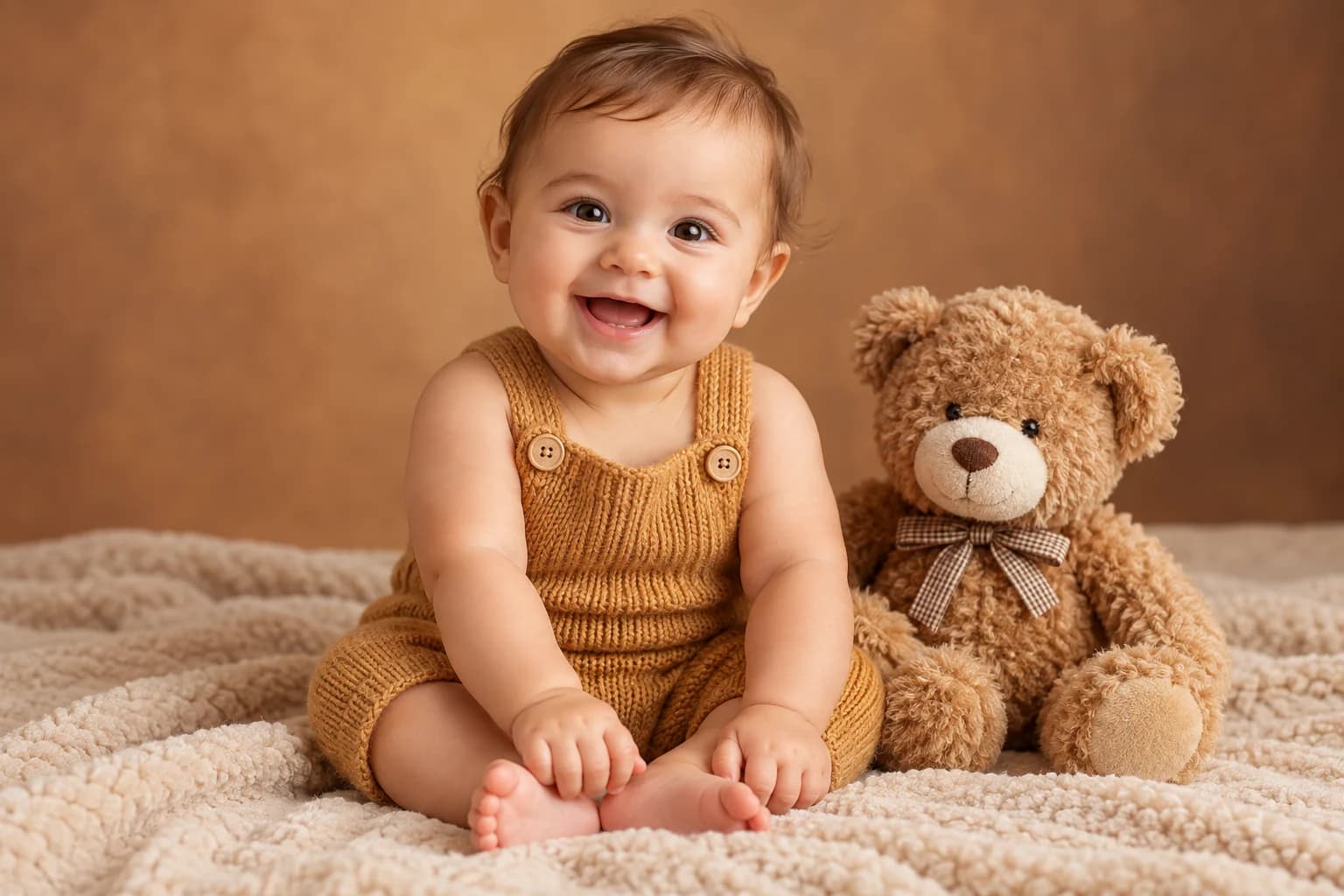
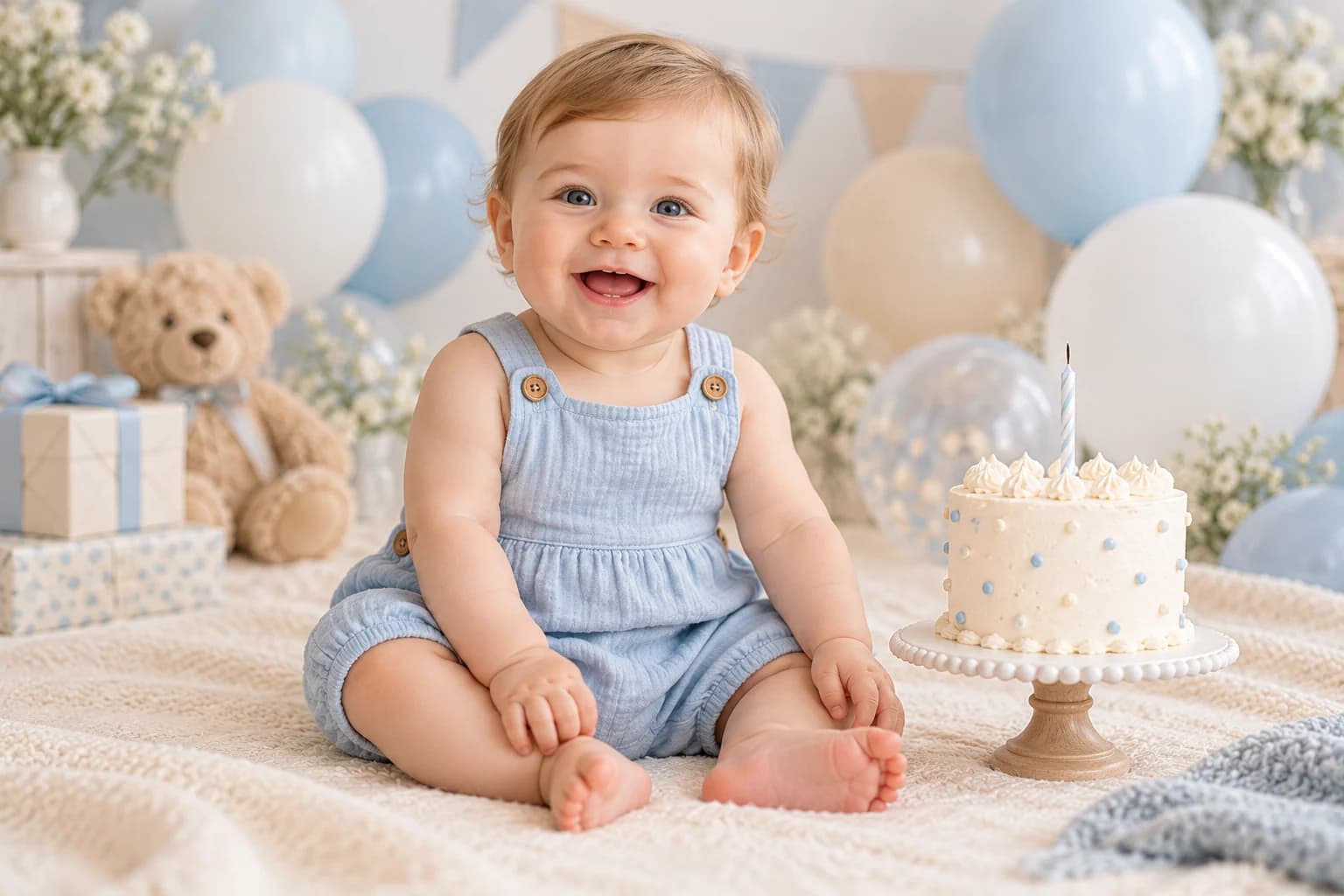
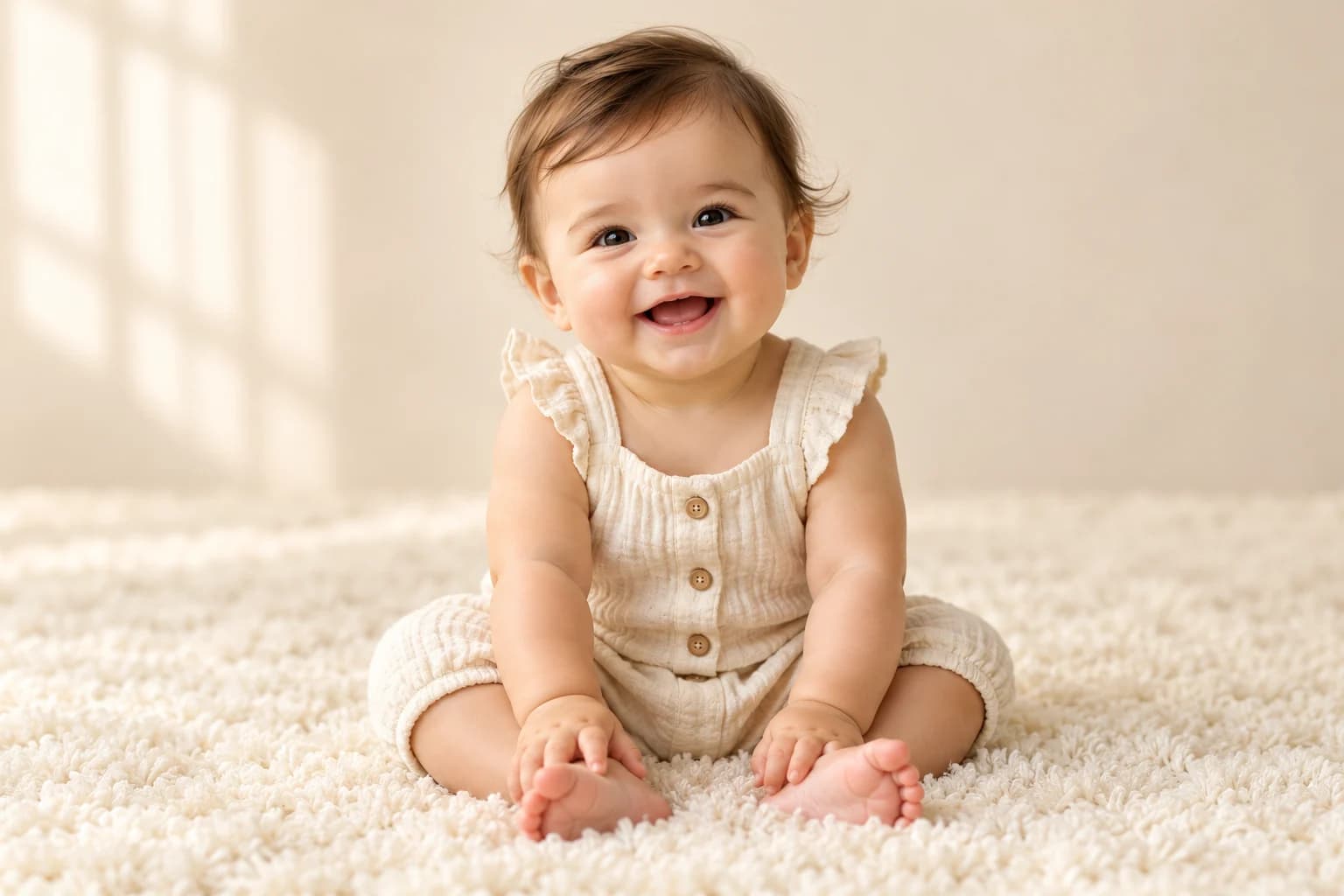
Cream studio keeps the portrait simple with ivory textures and soft light. Teddy bear adds a cozy companion, while First birthday introduces a little cake and pastel decorations. Autumn pumpkin, Christmas and Flower garden bring seasonal colors into the scene. Click a theme card to see the larger example and select its creative direction. The chosen theme supplies the prompt details automatically, including clothing, background and lighting.
Add a personal touch
Use Other ideas for a favorite outfit color, a softer background or a small styling detail. Leave it empty to use the theme as shown. Choose landscape 3:2, portrait 2:3 or square 1:1 to suit the layout you have in mind. A birthday theme changes the setting rather than requesting an older baby. AI can still alter details, so check the face, hands, proportions and clothing when the result is ready.
Save a portrait to keep
Sign in to generate with account credits and keep Private gallery enabled for a private result. Completed portraits are available in My creations, where you can return to a task or download its PNG. Use the image in a digital family album, a personal message or a celebration design. Review the downloaded dimensions before printing, and add any precise names or dates in your preferred editor.
How to use AI Baby Photoshoot
Start with your idea, choose your settings, then review the finished image.
Upload your baby’s photo
Choose one JPG, PNG or WebP image up to 20 MB. Use a recent photo with a clear face, natural light and one baby in the frame. Only upload a child’s photo when you are their parent or guardian, or have the appropriate permission. Replace the image whenever you want before generating.
Pick a photoshoot theme
Select one of the six picture cards. The larger preview follows your selection so you can compare the looks. You can generate with the theme alone, or add a personal detail and change the image shape. Keep Private gallery on if you want the finished portrait to remain private.
Generate and download
Check the displayed credit cost, then create your portrait. Review the face and small details before downloading the PNG. If a task is still processing, use Refresh status on that task instead of submitting another request. Every new generation is a separate task with its own credit cost.
Who can use AI Baby Photoshoot?
Find a starting point that fits what you want to make.
Everyday memories
Turn a favorite everyday snapshot into a softly styled portrait for a personal family album. Simple studio and teddy bear themes keep the focus on your baby’s expression.
Photo gift ideas
Make a portrait concept for a personal digital greeting or album cover. Choose a calm background with space for your own message, then add any exact lettering in an image editor after downloading.
Birthday celebrations
Explore a cake-and-balloons setting for a birthday greeting or invitation concept. Add names and dates afterward if exact lettering matters, and keep the original photographs alongside the AI portrait.
Seasonal family greetings
Try autumn colors, warm Christmas lights or a spring garden for a digital greeting. Pick an image shape that fits your intended layout, and review the finished portrait with the family before sharing it.
Frequently asked questions about AI Baby Photoshoot
What is an AI baby photoshoot?
It creates a new themed baby portrait using your uploaded baby photo as a visual reference. The theme guides the background, outfit and lighting. It is an AI image, rather than a photograph of a real studio session.
Do I need to upload a photo?
Yes. One baby photo is required. This tool styles an existing baby photo; it does not predict a future baby from parent photos. Choose a clear image of one baby with their face visible.
Will my baby look exactly the same?
The generation instructions ask to preserve identity, facial features, skin tone, hair and age. Likeness is not guaranteed, and expressions or small details may change. Use a sharp reference and review each result before keeping or sharing it.
Can I use a newborn photo?
You can use a clear newborn photo. The instructions ask for the original age and a comfortable supported pose suited to the baby, including a reclined pose when appropriate. Check the generated pose and anatomy carefully. The tool does not require staging a themed scene at home.
Can I change the outfit or background?
Choose a theme for a prepared outfit and setting, then use Other ideas to request a preferred color or small detail. The model may interpret these details differently. For a very different look, choose another theme and submit a new generation.
Can I download and print my portrait?
Download a completed portrait as a PNG. You can use it in a digital album or prepare a print with your usual image editor or print service. Check the file dimensions and crop for your chosen print size; there is no guaranteed print size or exact likeness.
How much does an AI baby photoshoot cost?
Sign in to generate with account credits. Each portrait costs 5 credits, shown before submission. Credits are reserved during processing and charged on success. A confirmed failure releases them; pending or unknown outcomes keep their reservation until confirmed.
Are my baby photo and portrait private?
Results start private when you sign in. Keep Private gallery on, or turn it off to allow the finished portrait to appear publicly. Your reference photo and instructions are not displayed in the public gallery. They are stored and processed by Picmira and its service providers to generate your image. There is currently no fixed automatic deletion schedule; see the Privacy policy for details.
Can I generate a portrait now?
Upload a baby photo, choose a theme and sign in to generate with account credits. Guest generation is not available for this tool.