 Picmira
Photo to Sketch
Turn your photos into pencil-style sketches. Upload a portrait, an object or a scene, add optional drawing details, and explore a version made of graphite lines and shading.
Features of Photo to Sketch
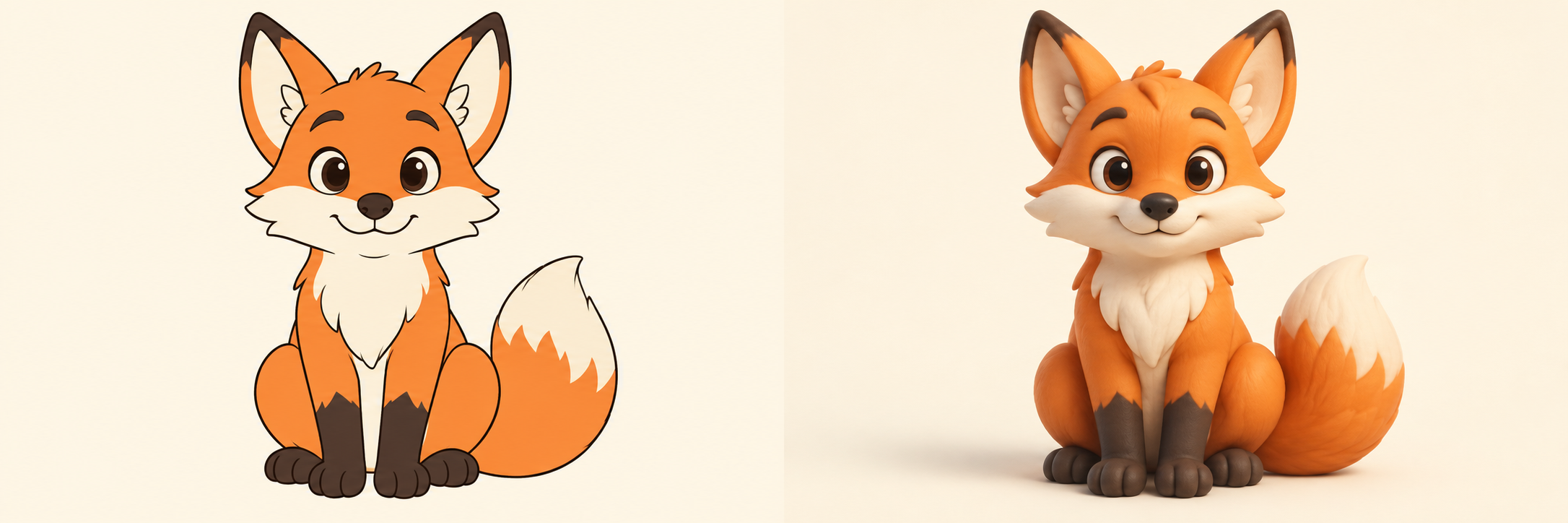
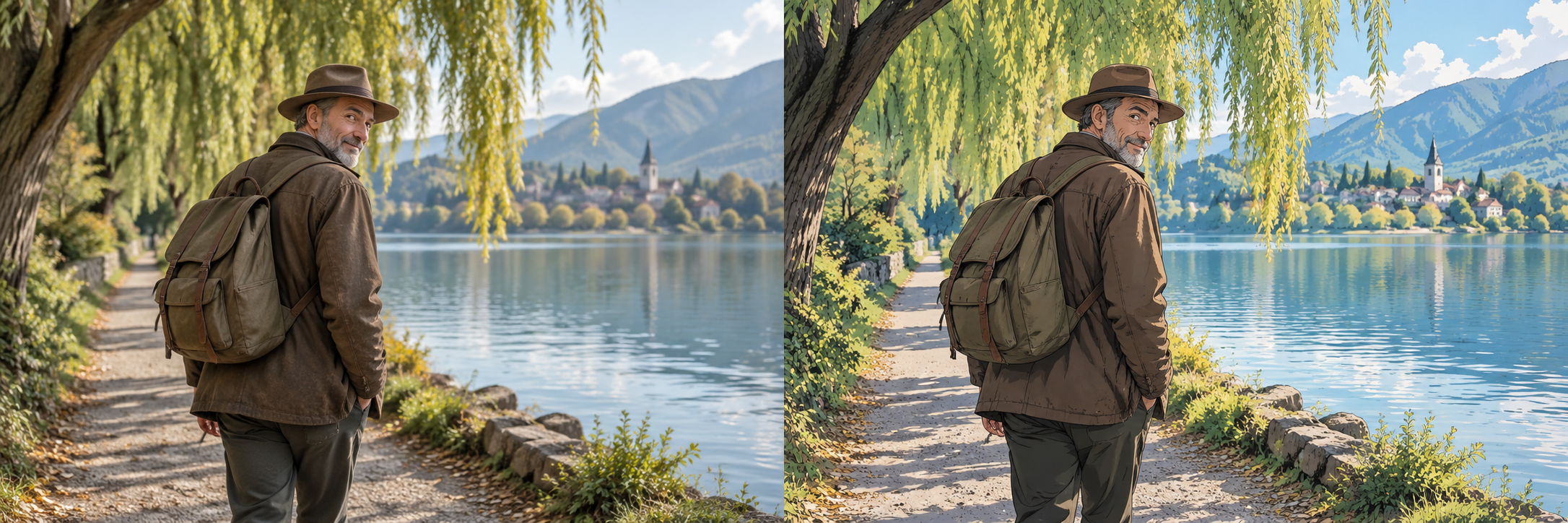
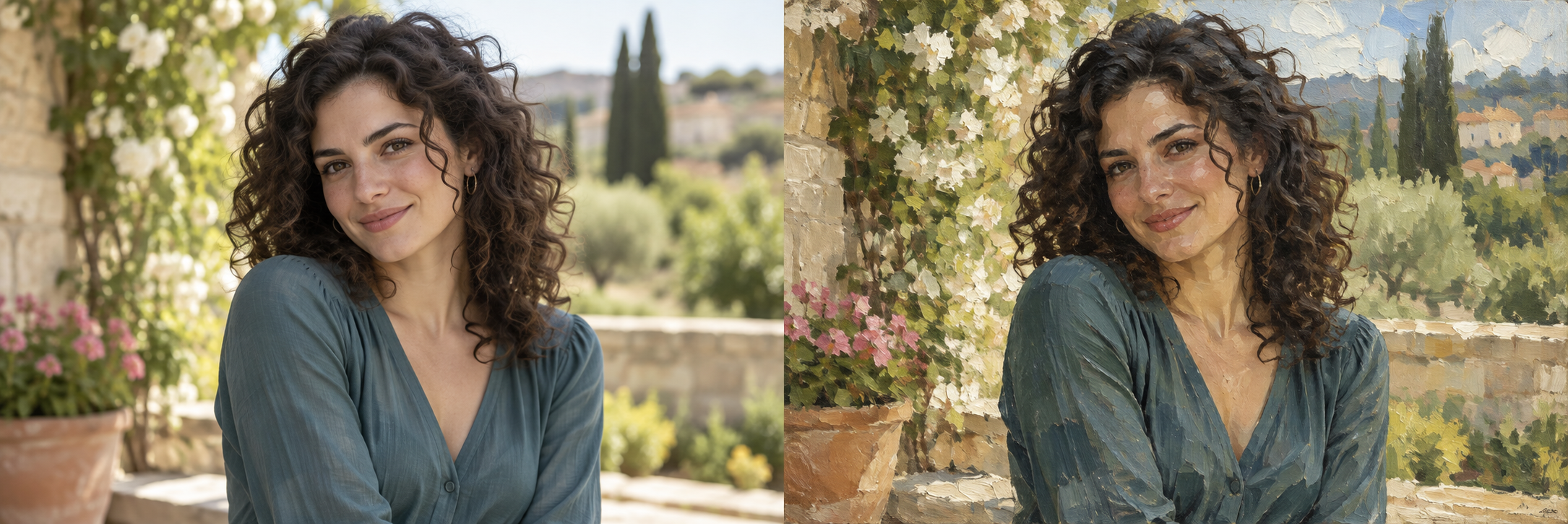
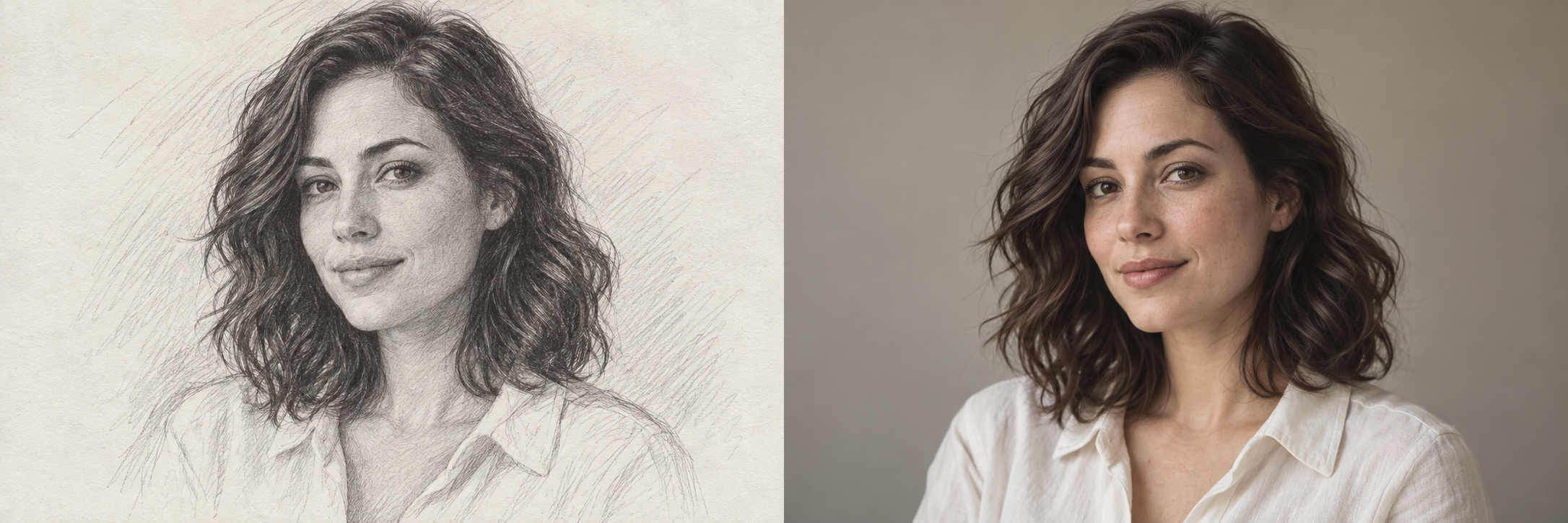
Explore how a photograph looks when its colors and textures are interpreted as drawn lines and tonal shading. Start with a clear subject, then describe a soft pencil finish, bold contours or a lighter background. Review the drawing alongside your photo.
Turn photographic detail into pencil lines
Start with a portrait, a still life or an architectural scene. The reference guides the subject and composition, while the sketch treatment explores contours, hatching and shading. Clear lighting and visible outlines give the drawing a useful starting point.
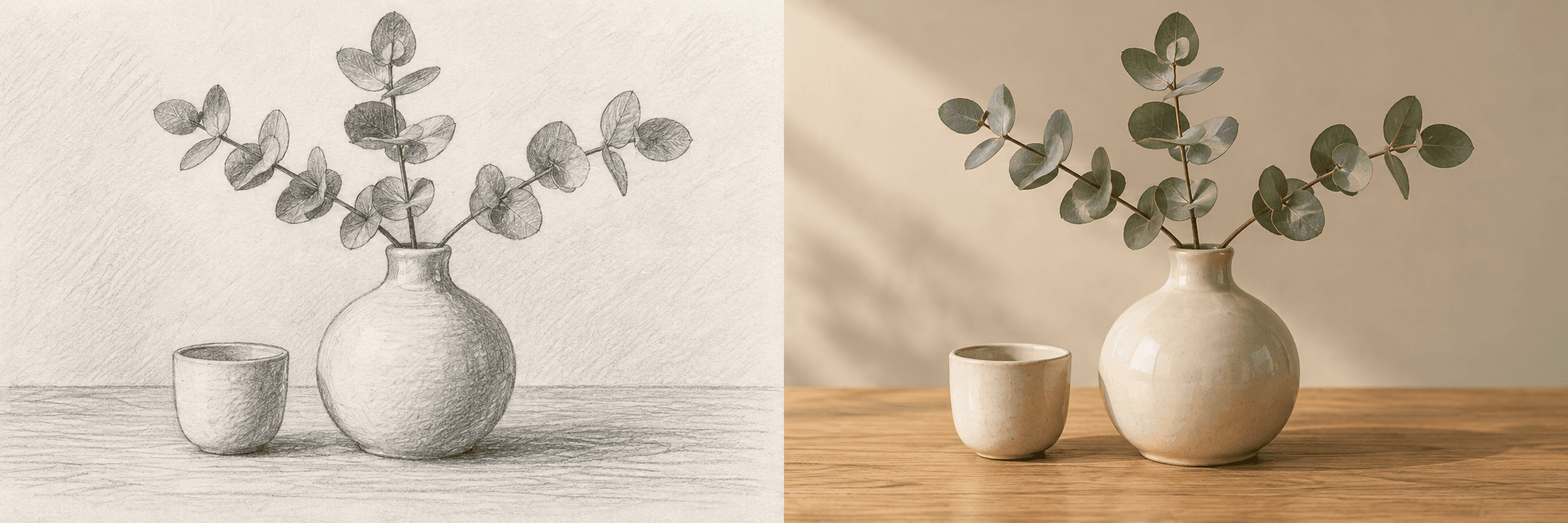
Guide the drawing style
Use Other ideas to request fine graphite lines, stronger outlines, soft shading or a cleaner background. These instructions are optional; leaving the field empty uses the default pencil-sketch direction. The result is an AI interpretation rather than an exact tracing.
 3:2
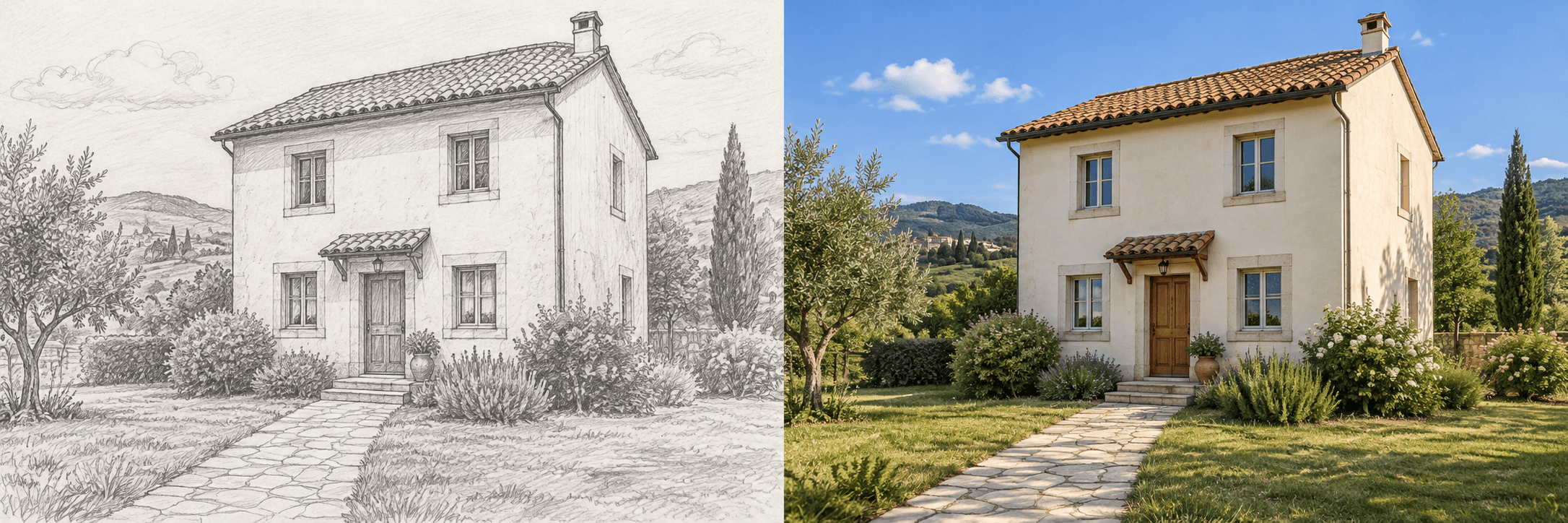
3:2Frame portraits, objects and scenes
Choose 2:3 for a vertical portrait, 1:1 for a square object study or 3:2 for a wide scene. The selected shape guides the output format. Leave room around your subject, since cropping, background detail and proportions may change.
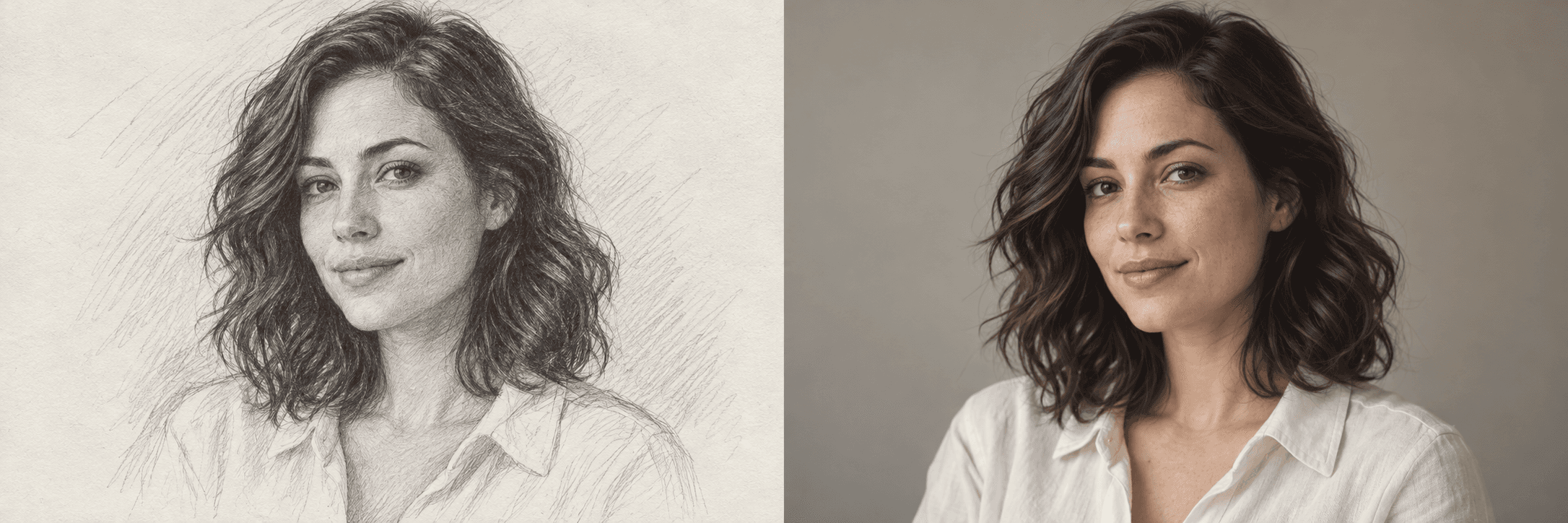
Keep personal photos and drawings private
Log in and leave Private gallery on to keep the completed sketch private. Signed-in accounts default to private; guest results are public. Your uploaded photo and instructions stay private in either mode. Signed-in users can change their completed image visibility in My creations.
How to use Photo to Sketch
Start with your idea, choose your settings, then review the finished image.
Upload or paste your photo
Choose a JPG, PNG or WebP up to 20 MB that you own or have permission to edit. Drop it into the upload area, select Upload image, or paste a copied image with ⌘V / Ctrl+V. Use a clear photo with the main subject fully visible.
Choose the sketch direction and image shape
Optionally describe line weight, shading or background detail in Other ideas. Leave it empty for the default pencil look. Select 1:1, 2:3 or 3:2, then log in and keep Private gallery on if you want a private result.
Create, compare and download
Use the displayed daily guest allowance for a public image or log in to use account credits. Compare the sketch with your photo, check important details and download the result. Signed-in tasks appear in My creations; guest tasks remain associated with this browser session.
Who can use Photo to Sketch?
Find a starting point that fits what you want to make.
Portrait and pet photo owners
Explore a drawn interpretation of a favorite portrait or pet photo. Check facial features, expressions and fur details before sharing the sketch, and use photos with the subject owner’s permission.
Artists and drawing students
Compare how a photographic reference might be simplified into contour lines and tonal areas. Use the interpretation as a visual study alongside your own drawing practice, rather than treating it as an exact record of the photo.
Designers and concept planners
Explore a pencil-style direction for an object, room or building on a mood board. Review details that matter to your concept; the image does not provide accurate dimensions or construction drawings.
Travel and visual storytellers
Give a landscape or architectural photograph a drawn look for a personal story or presentation. Keep the original available and review which details the sketch retains, simplifies or changes.
Frequently asked questions about Photo to Sketch
What kinds of photos work well?
Portraits, pets, objects, buildings and landscapes with a clear subject and visible edges are useful starting points. Upload a JPG, PNG or WebP up to 20 MB. Blurry photos, very dark scenes and crowded backgrounds can make the intended drawing harder to interpret.
Can I choose a different sketch style?
Use the optional Other ideas field to describe pencil line weight, hatching, shading or background simplicity. Leaving it empty uses the default pencil-sketch direction. These are written instructions rather than separate style presets, and the exact appearance is not guaranteed.
Is the output an exact tracing or a vector drawing?
No. Photo to Sketch creates a raster image in a drawn style, not editable vector paths or a precise tracing. Facial features, fine lettering and proportions may change. Use Sketch to Photo for the opposite direction: turning a drawing into a photographic-style image.
Is this tool available to generate images now?
Choose your settings, then select Generate image. Use the displayed guest allowance for a public result, or sign in to generate with account credits.
How many credits does one task cost?
Guests receive 1 free public generation per day, resetting at 00:00 UTC. Signed-in tasks cost 5 credits; review your balance before submitting. Credits are reserved during processing and settled on success.
What does Private gallery control?
Guests generate public results. Log in to enable Private gallery, which defaults to on for signed-in users. Turning it off allows the completed image to appear publicly. Reference uploads and prompts remain private. Signed-in users can change visibility for their own tasks in My creations.
What should I do if a task fails or its outcome is unclear?
A verified failure releases reserved credits. An unknown or unconfirmed outcome keeps the reservation while the status is checked. Refresh that task’s status instead of assuming failure or starting another purchase or generation to bypass it.