 Picmira
AI Christmas Card Generator
Turn a favorite photo into a personal Christmas card. Choose from nine festive looks, add your greeting and make it yours.
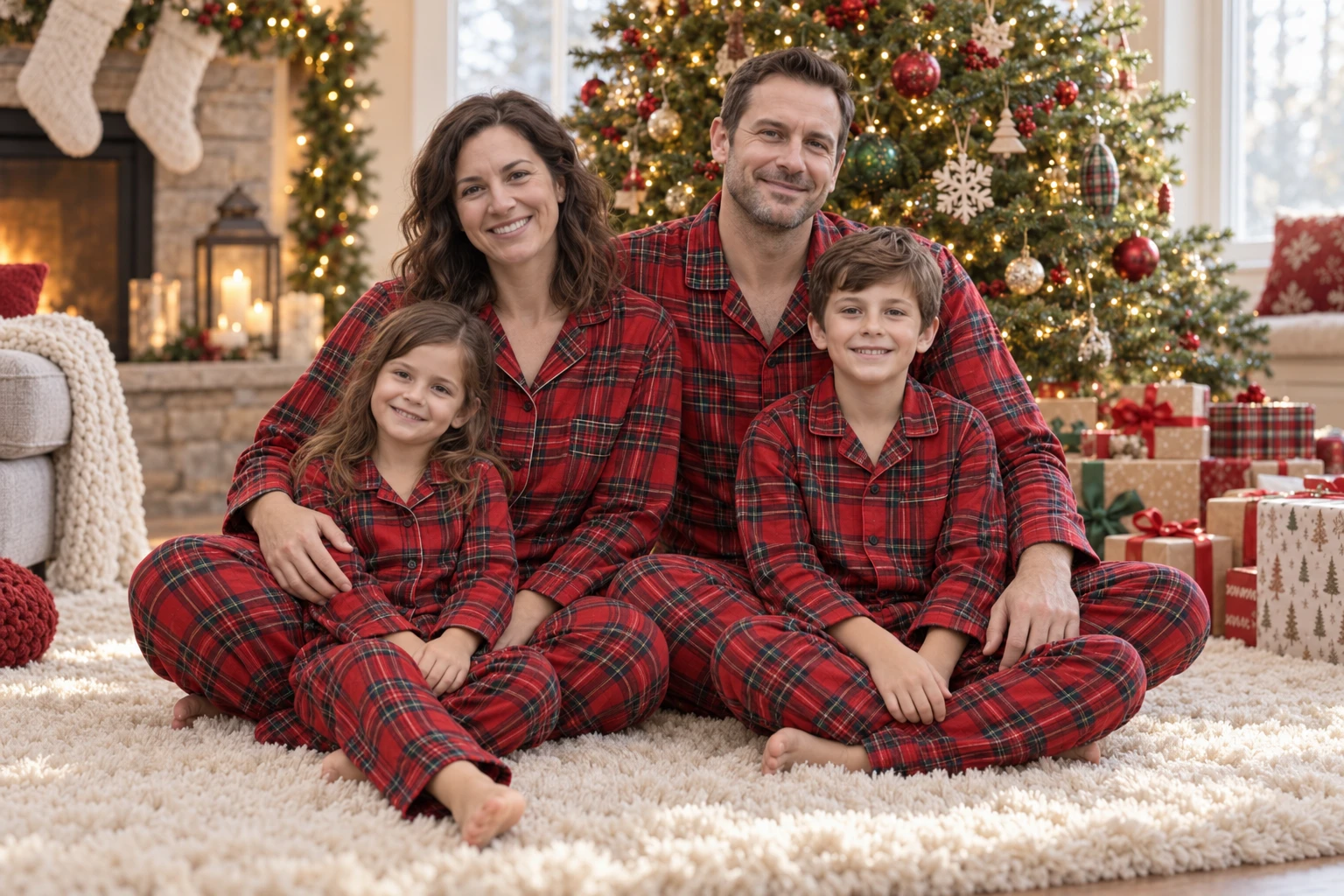
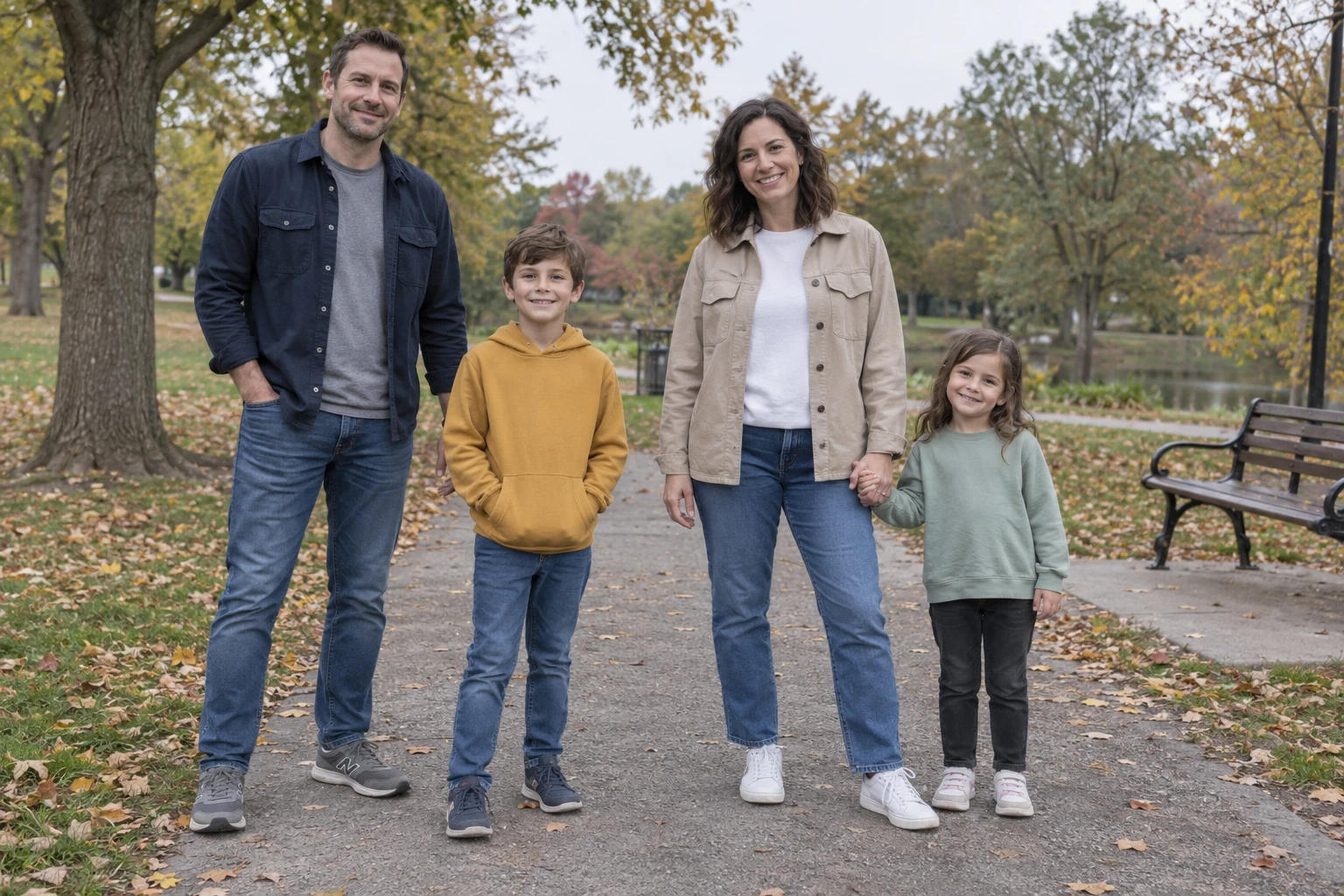
Features of AI Christmas Card Generator
Start your Christmas card with a photo of familiar faces or a beloved pet. Pick from nine styles: family moments in Matching Pajamas, Snow Day or Meeting Santa; playful portraits with Ugly Sweater Party, Pet Star or 3D Cartoon; and illustrated designs in Classic Postcard, Watercolor or Paper Craft. Add a personal message, then review the image and words before sharing your digital greeting.
Start with a photo that means something
Use a portrait, a photo together or a pet picture to give your card a personal starting point. A clear, well-lit reference helps the model see faces, fur and other important details. The scene and styling change around your subject; likeness, clothing and small features may also change, so compare the finished image with the photo.
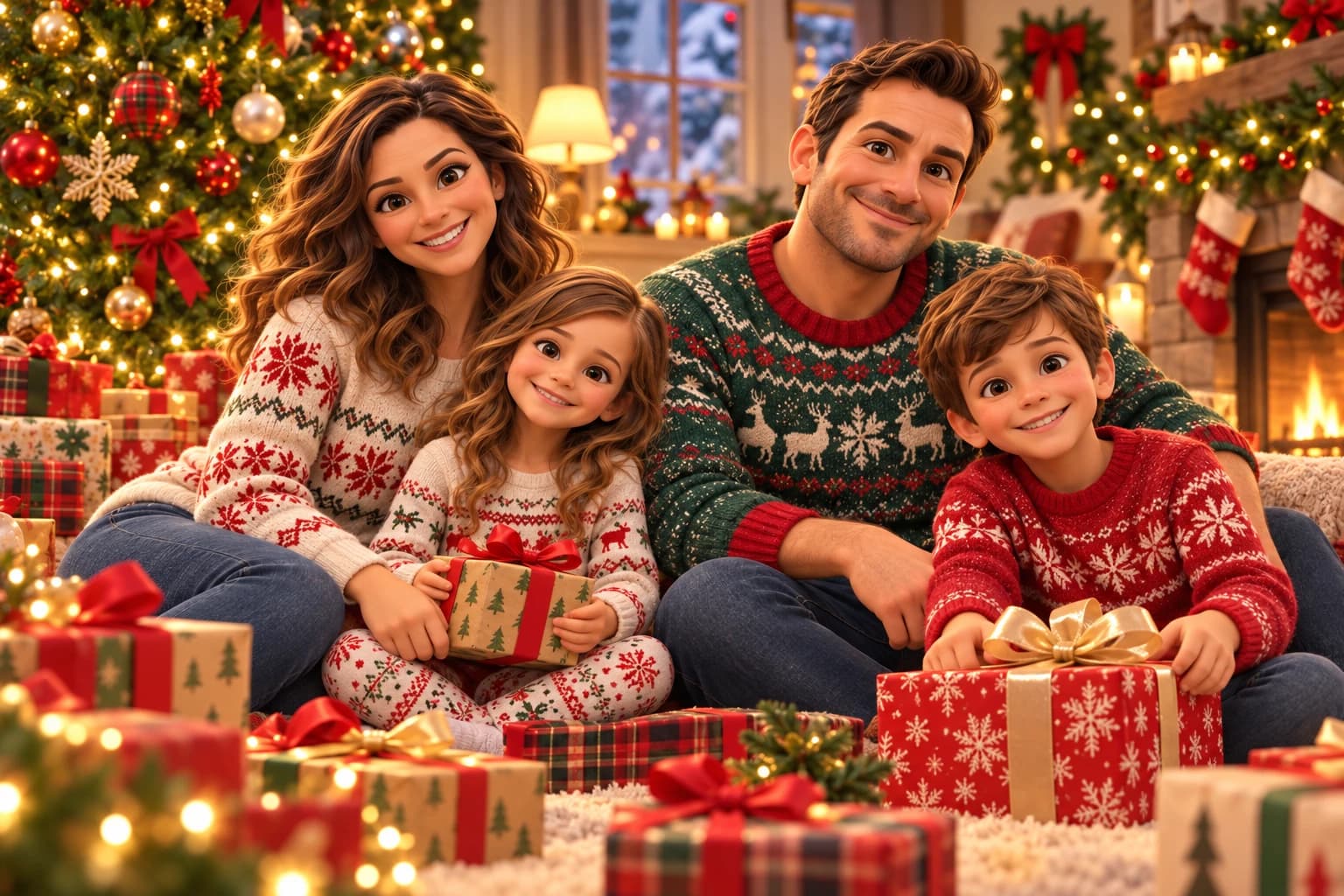
Choose from nine Christmas styles
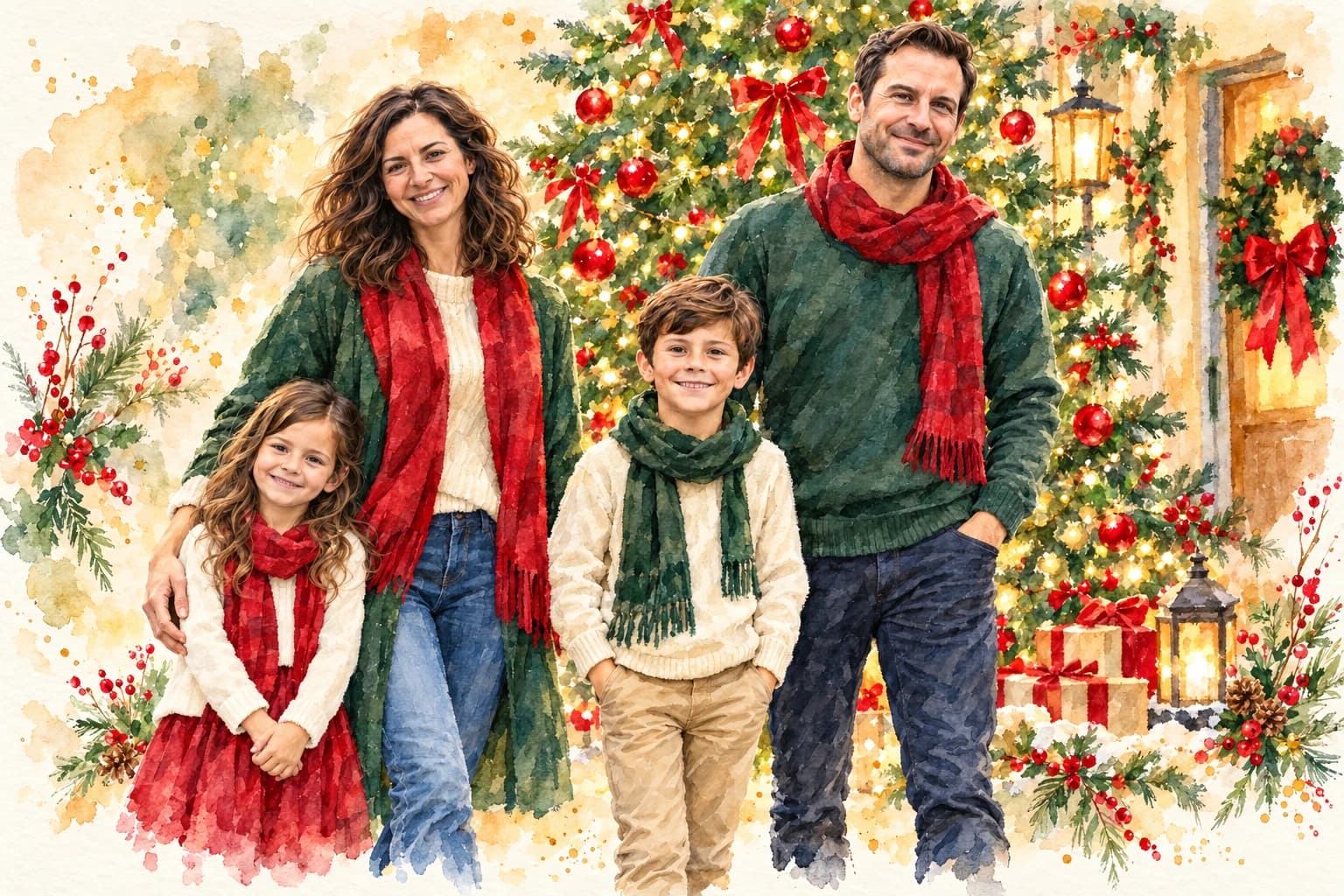
Browse the picture previews for family portraits, playful holiday scenes and illustrated card designs. Matching Pajamas brings everyone together by the tree; Pet Star puts an animal in the spotlight; Watercolor adds soft hand-painted texture. Your selected style supplies the creative direction, so no prompt is needed. Your uploaded photo supplies the subjects for every style.
Write a short greeting and sign your card
Add a greeting such as “Merry Christmas” or “Warm wishes,” then an optional signature for your family, team or business. Leave either field empty to omit that text. Short wording gives the design more space. Letters are generated as part of the image, so check spelling, punctuation and every name carefully; exact text reproduction is not guaranteed.
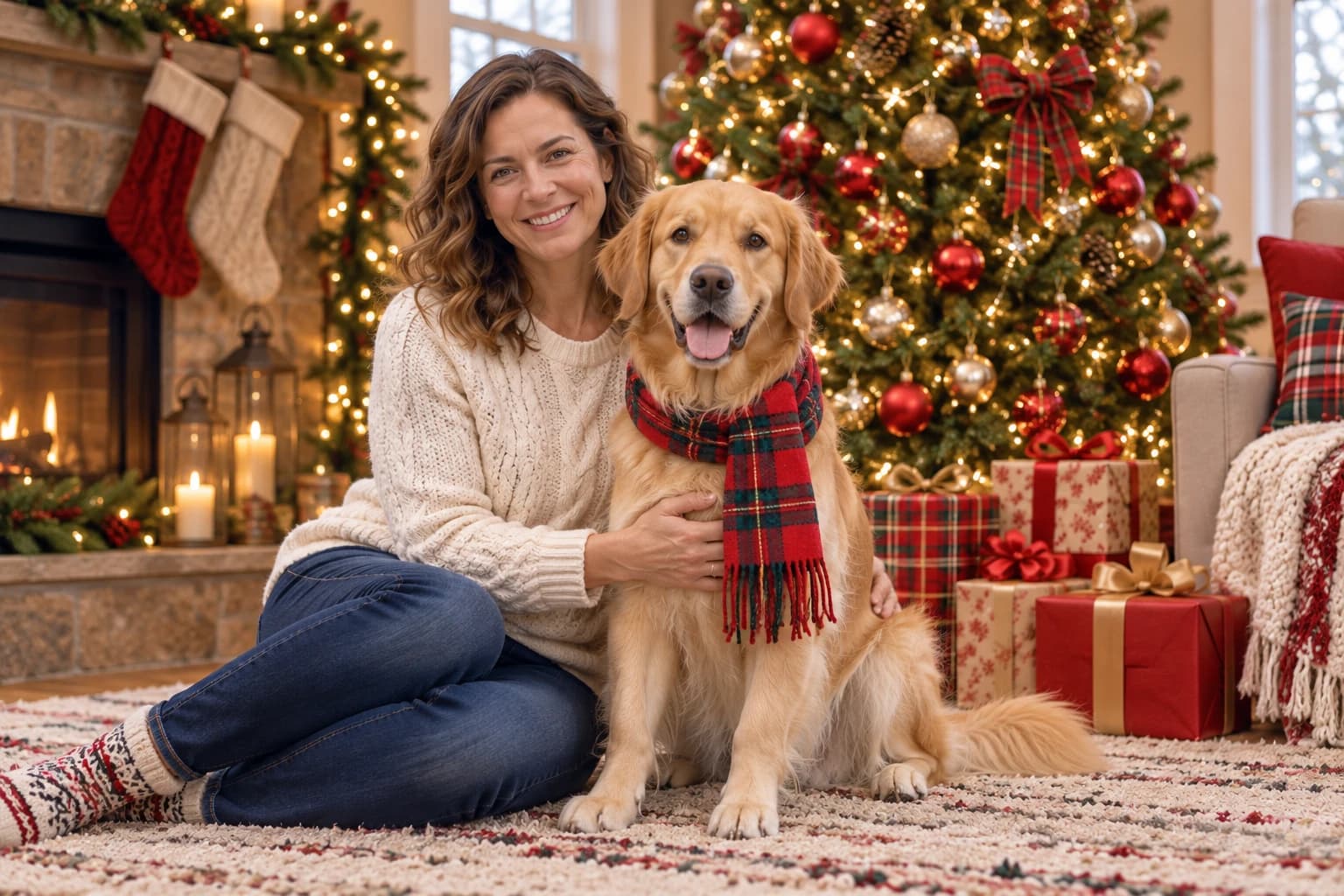
Make a card for the place you will share it
Choose square 1:1, portrait 2:3 or landscape 3:2 to guide the composition. Review the completed image, then download a PNG for a message, email or social post. The output is one flat image, so individual text and design layers are not editable. For physical cards, check the actual pixel dimensions and your printer’s size and bleed requirements first.
How to use AI Christmas Card Generator
Start with your idea, choose your settings, then review the finished image.
Upload your reference photo
A reference photo is required. Upload a JPG, PNG or WebP up to 20 MB. Choose a picture you own or have permission to use, with faces or your pet clearly visible. Then click a style card to preview the look.
Set the scene and personal message
Pick a festive scene and choose Image shape. Open Advanced Options if you want to add a greeting or signature. The selected style supplies the creative direction automatically. Review the displayed credit cost. Sign in before generating for a private card; guest results may appear in the public gallery.
Generate, check and download
Select Generate image and wait for your card. Inspect faces, hands, decorations and all lettering before downloading the PNG. If a word or name is wrong, shorten the wording and generate another version, or add the text yourself in an image editor. Each new generation uses the displayed allowance or credits.
Who can use AI Christmas Card Generator?
Find a starting point that fits what you want to make.
Families and friends
Make a greeting around a shared photo. Add a short seasonal message and a family signature, then send the downloaded card through the messaging or email service you already use.
Pet owners
Place your dog, cat or another pet in a festive setting. Use a clear reference that shows distinctive details, such as your pet’s coat pattern. Check the generated animal carefully before sharing the card.
Small businesses and teams
Explore a seasonal greeting for customers or colleagues with colors and wording that fit your business. Keep the message concise and check any business name. Review the final design before using it in a campaign or customer communication.
People who prefer an illustrated card
Choose Classic Postcard for a nostalgic printed look, Watercolor for soft painted washes, or Paper Craft for layered cut-paper shapes. Upload your photo as the reference, then choose a shape that suits your digital greeting.
Frequently asked questions about AI Christmas Card Generator
What is an AI Christmas card generator?
It turns a photo of you, your family or your pet into a personalized Christmas image. Picmira offers nine styles, from festive family photos to illustrated cards. Use your photo as the starting point, choose a look, and add a greeting and signature if you like. No prompt writing is needed.
How does Picmira’s AI Christmas card generator work?
Upload one JPG, PNG or WebP up to 20 MB, select a Card style, and choose Image shape: landscape 3:2, portrait 2:3 or square 1:1. Clicking a style shows its before-and-after example. For a personal message, open Advanced Options to add a greeting or signature. Then select Generate image, review the result and download it. A reference photo is required for every style.
Which Christmas card style should I choose?
For family moments, try Matching Pajamas by the tree, Snow Day outdoors or Meeting Santa with the children. Ugly Sweater Party, Pet Star and 3D Cartoon offer more playful looks. For an illustrated card, choose Classic Postcard for a vintage print, Watercolor for soft festive painting, or Paper Craft for layered cut-paper shapes. Compare the previews to find the look you prefer.
Can I add someone who is not in my group photo?
This tool currently accepts one reference image, so choose a photo that already includes everyone you want in the card. Separate photos of extra people or pets cannot be uploaded together. You can use a solo portrait, a family photo or a pet photo; Pet Star is designed to make your pet the main subject.
Can I make a Christmas photo without a greeting?
Yes. Leave both Greeting and Signature empty in Advanced Options to request an image without added lettering. You can also enter a short message and a name. Check spelling in the finished image, since AI can alter words or names. For precise typography, generate without text and add your message in an image editor.
Can I download and print my Christmas card?
Yes. Download the finished PNG to share in messages, email or social posts, or use it as artwork for a printed card. Before printing, check its pixel dimensions against your intended print size and the printer’s requirements. The download is a single image; folded-card layouts, bleed settings and dedicated print export are not available yet.
Why might a face, pose or detail look different?
AI creates a new scene from your reference, so faces, hands, poses and pet markings can change. Illustrated styles also deliberately change how people look. Use a sharp, well-lit photo with every face clearly visible, and avoid tiny or obscured faces. If a result looks off, try a clearer photo or another style and generate again. Each new generation uses the displayed credits or guest allowance.
How many credits does an AI Christmas card cost?
Guests receive 1 free public generation per day, resetting at 00:00 UTC. When signed in, each card costs 5 credits. The form shows the cost before you generate. Credits are reserved while your card is processing and charged on success; a confirmed failure releases them.
Are my photos and Christmas cards private?
Your uploaded reference photo and instructions are not shown in the public gallery. They are stored and processed by Picmira and its service providers to generate your card. Cards created while signed in are private by default, and you can manage them in My creations. Guest results may appear publicly. Uploads and results currently have no fixed automatic deletion schedule; see our Privacy policy for details.
What if my Christmas card fails or is still processing?
Use Refresh status on the result card to check the same generation. Signed-in users can also find it in My creations. A confirmed failure releases reserved credits or returns the guest attempt. A pending or unconfirmed result keeps its reservation until the outcome is known, so check its status before starting another generation.