 Picmira
Photo to Painting
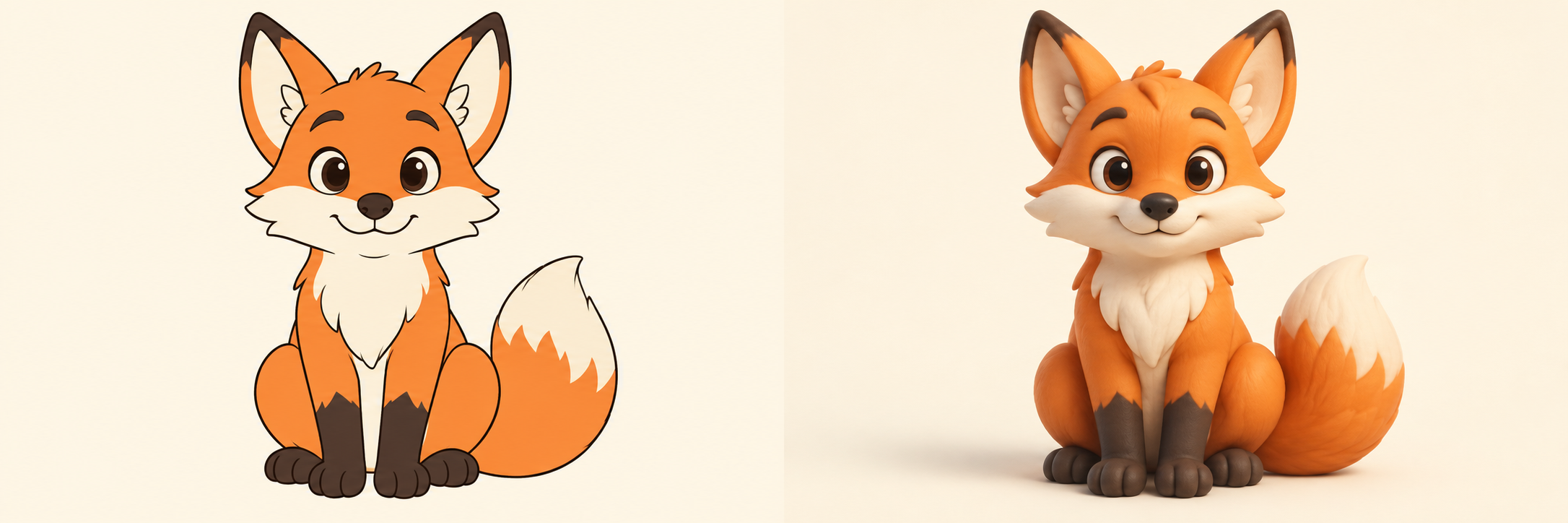
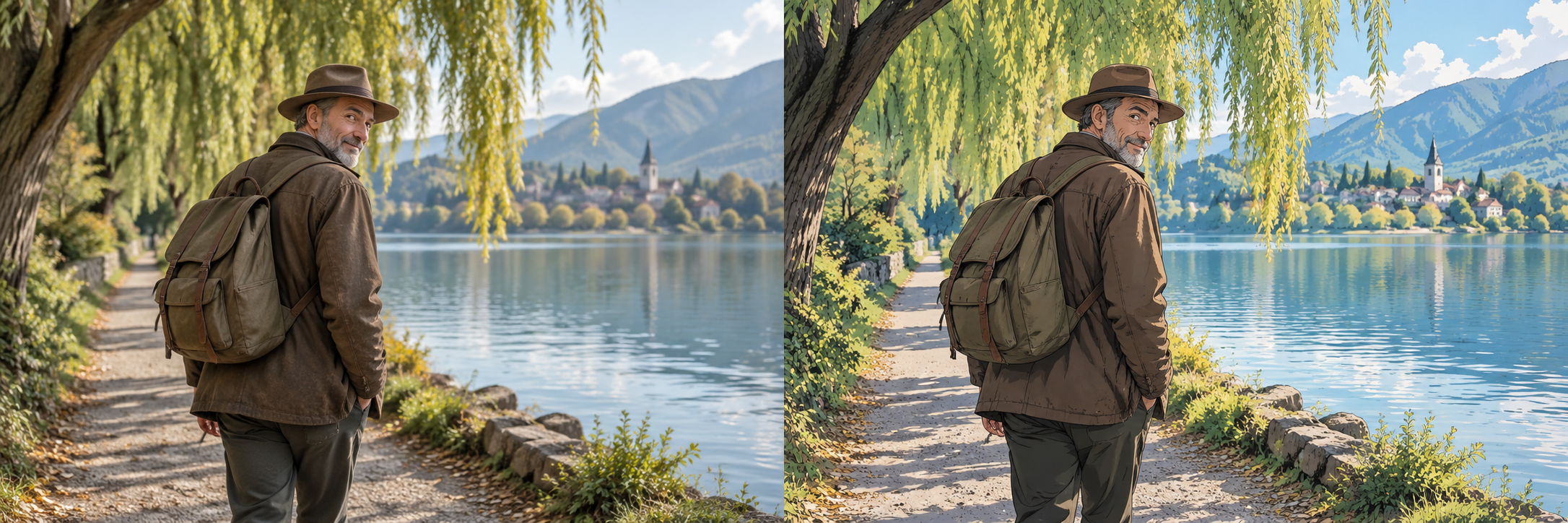
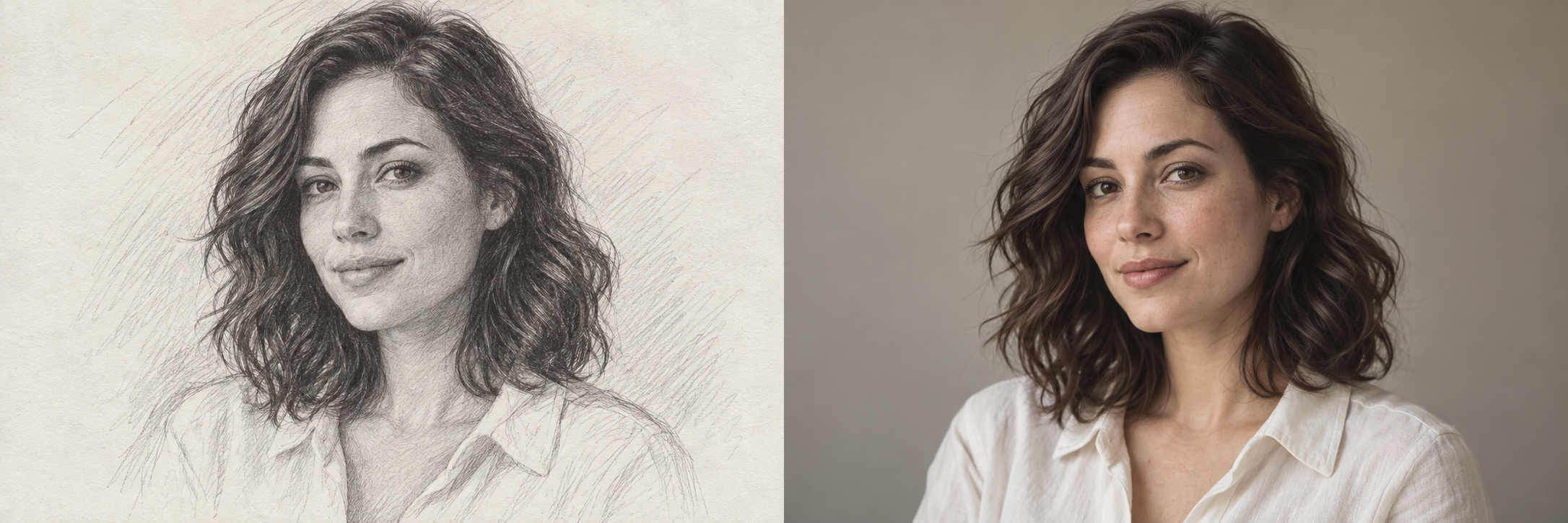
Turn a portrait, pet photo or landscape into a digital painting. Upload your photo, choose a painting style such as oil or watercolor, and add optional ideas for brushwork, colors and mood.
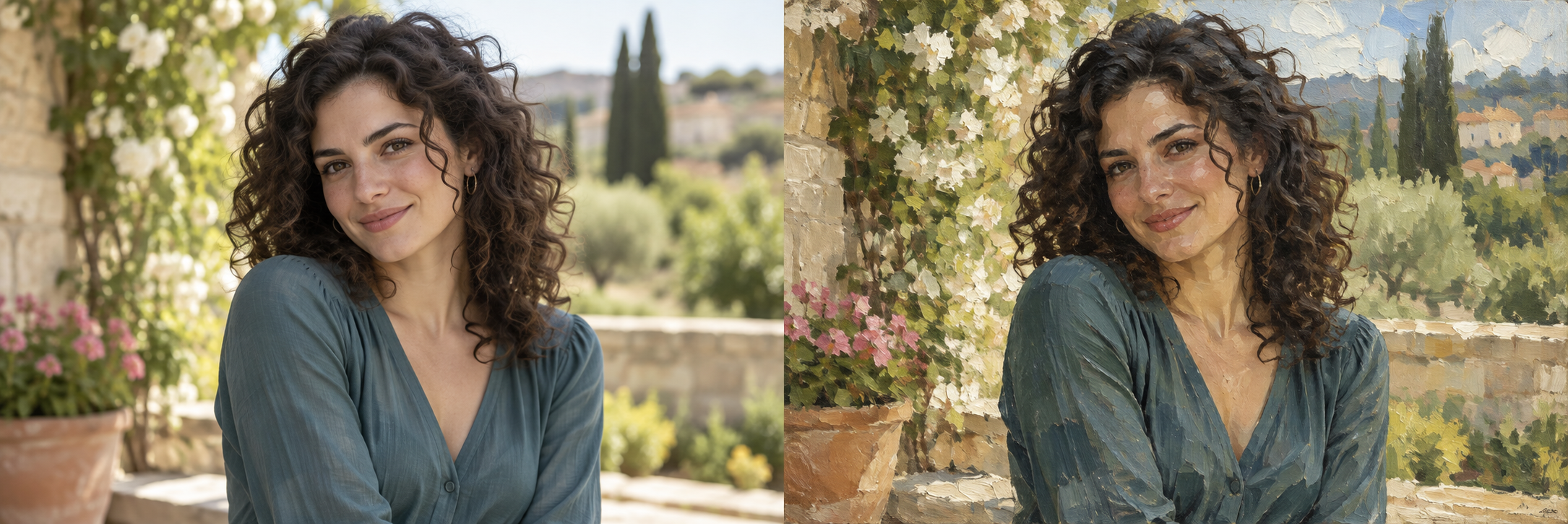
Features of Photo to Painting
Explore how a familiar photo might look in paint. Your image provides the subject and composition; your selected Painting style guides the medium and visual treatment. Add optional details for colors, texture or background, then compare the interpretation with your source.
Explore different painting styles
Choose Oil painting, Watercolor, Acrylic, Gouache or Impressionist with one click. Oil painting is selected by default. Each style guides the medium and visual treatment; brushwork and surface texture may vary between results.
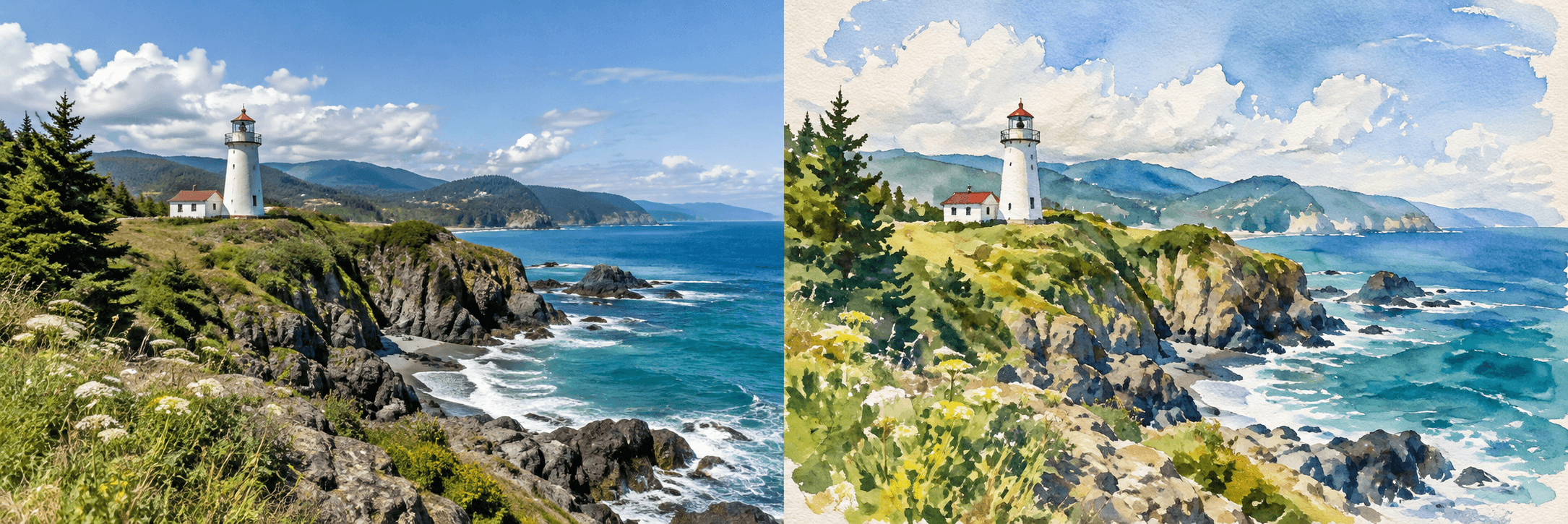
Give everyday photos a painted look
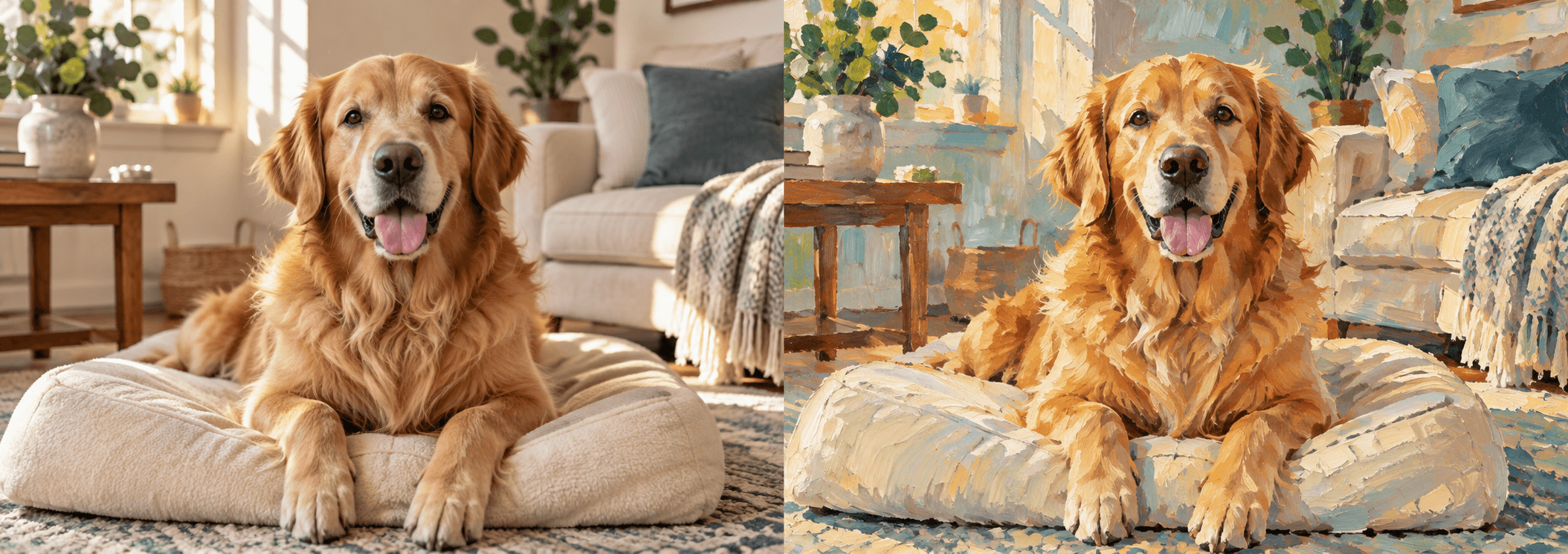
Start with a portrait, a pet, a landscape or a still life. Clear subjects and visible details help communicate the intended composition. The painting can simplify textures and edges while retaining a recognizable scene. Compare faces, shapes and important objects, since an exact match is not guaranteed.
 3:2
3:2Shape the colors, texture and composition
Use Other ideas to describe soft washes, thick brush strokes, a warm palette or a simpler background. This field is optional; your selected painting style already provides the artistic direction. Choose 3:2 for a landscape, 2:3 for a portrait or 1:1 for a square study, and leave space around important details.
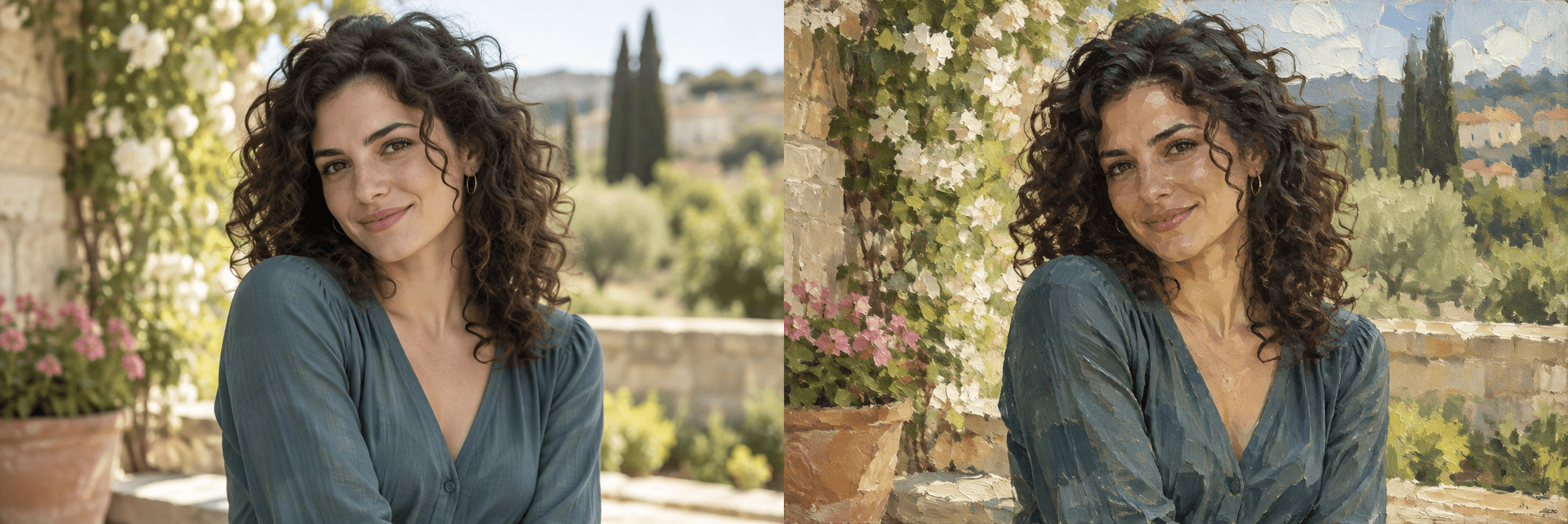
Keep personal painting ideas private
Log in and leave Private gallery on when working with personal photos or early creative ideas. Signed-in accounts default to private; guest results are public. Your uploaded source and instructions remain private in either mode. Signed-in users can change a completed image’s visibility in My creations.
How to use Photo to Painting
Start with your idea, choose your settings, then review the finished image.
Upload or paste a photo
Choose a JPG, PNG or WebP up to 20 MB that you own or have permission to edit. Drop the file into the upload area, select Upload image, or paste a copied image with ⌘V / Ctrl+V. Use a clear photo with the main subject fully visible.
Choose your painting style
Keep the default Oil painting style or choose Watercolor, Acrylic, Gouache or Impressionist. Add optional colors, lighting or texture in Other ideas, select an image shape, and review the Private gallery setting.
Create, compare and download
Use the displayed daily guest allowance for a public image or log in to use account credits. Compare the digital painting with your original, inspect the details and download the result. Signed-in tasks appear in My creations; guest tasks remain associated with this browser session.
Who can use Photo to Painting?
Find a starting point that fits what you want to make.
Portrait and pet photo owners
Explore a painted interpretation of a favorite personal photo or pet portrait. Choose a medium that fits the mood, then review facial features, expressions and fur details before sharing. The result is a digital artwork concept you can develop in your own workflow.
Travel and nature storytellers
Give a landscape or travel photo an expressive painted treatment for a personal story, journal or presentation. Try watercolor washes for an airy scene or textured brushwork for a bolder direction. Keep your original available to check details that AI may simplify or change.
Artists and design students
Compare how the same photographic subject reads in different painting media. Use the image as a reference for discussing color, texture and composition alongside your own practice. An AI interpretation does not demonstrate a manual painting technique or provide editable layers.
Content and gift project makers
Explore a painting-style image for a card, personal project or visual mood board. Check the finished dimensions and fine detail before preparing a print in your usual workflow. Picmira generates an image; it does not ship a physical canvas or guarantee a particular print size.
Frequently asked questions about Photo to Painting
Which painting styles can I choose?
Choose Oil painting, Watercolor, Acrylic, Gouache or Impressionist. Oil painting is selected by default, so you can start without writing a style description. Use Other ideas for extra direction. Each preset guides a new interpretation; exact brushwork and texture can vary.
Can I adjust the painting effect?
Use Other ideas to describe lighter washes, stronger brushwork, a different palette or less background detail. This optional field accepts up to 200 characters. There is no separate effect-strength slider; your instructions guide a new interpretation rather than deterministically adjusting the same image.
Is the result a physical painting or an editable file?
The result is a downloadable raster image. It is not a physical painting, layered source file or vector artwork. Review the actual pixel dimensions before printing and prepare any layout or color adjustments separately. Photo to Sketch is available for a pencil-drawing direction.
Is this tool available to generate images now?
Choose your settings, then select Generate image. Use the displayed guest allowance for a public result, or sign in to generate with account credits.
How many credits does one task cost?
Guests receive 1 free public generation per day, resetting at 00:00 UTC. Signed-in tasks cost 5 credits; review your balance before submitting. Credits are reserved during processing and settled on success.
What does Private gallery control?
Guests generate public results. Log in to enable Private gallery, which defaults to on for signed-in users. Turning it off allows the completed image to appear publicly. Reference uploads and prompts remain private. Signed-in users can change visibility for their own tasks in My creations.
What should I do if a task fails or its outcome is unclear?
A verified failure releases reserved credits. An unknown or unconfirmed outcome keeps the reservation while the status is checked. Refresh that task’s status instead of assuming failure or starting another purchase or generation to bypass it.