 Picmira
Photo to Anime
Turn portraits, pet photos and favorite places into anime-style illustrations. Upload a photo, add your ideas and choose the image shape.
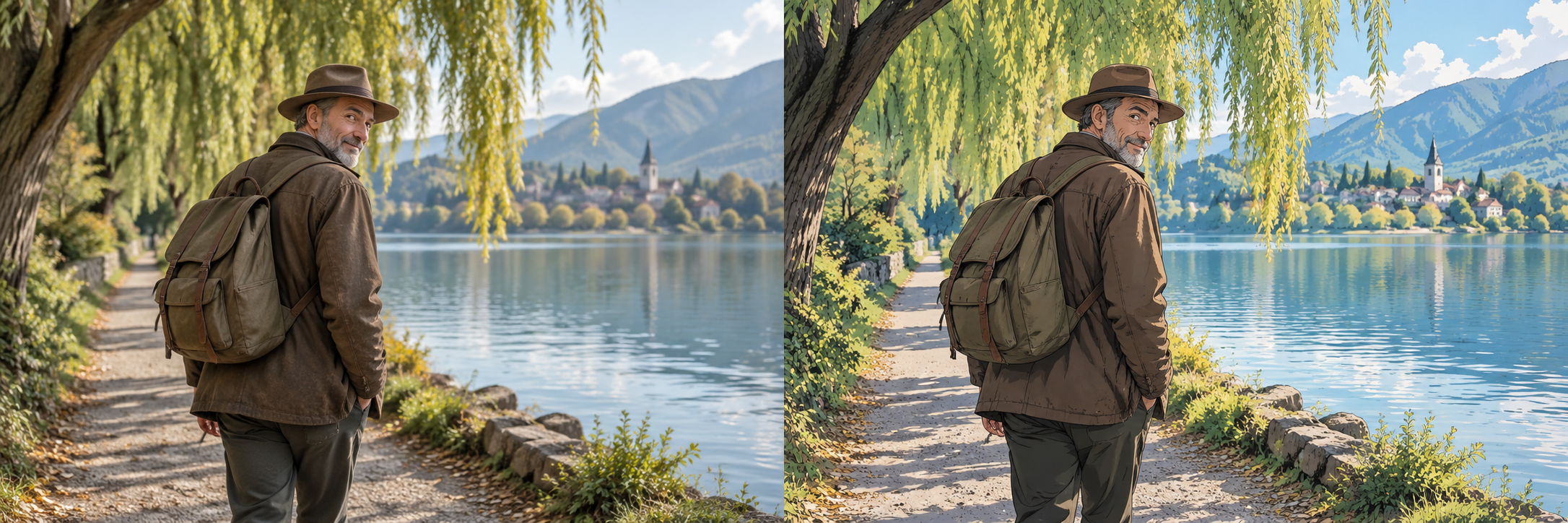
Features of Photo to Anime
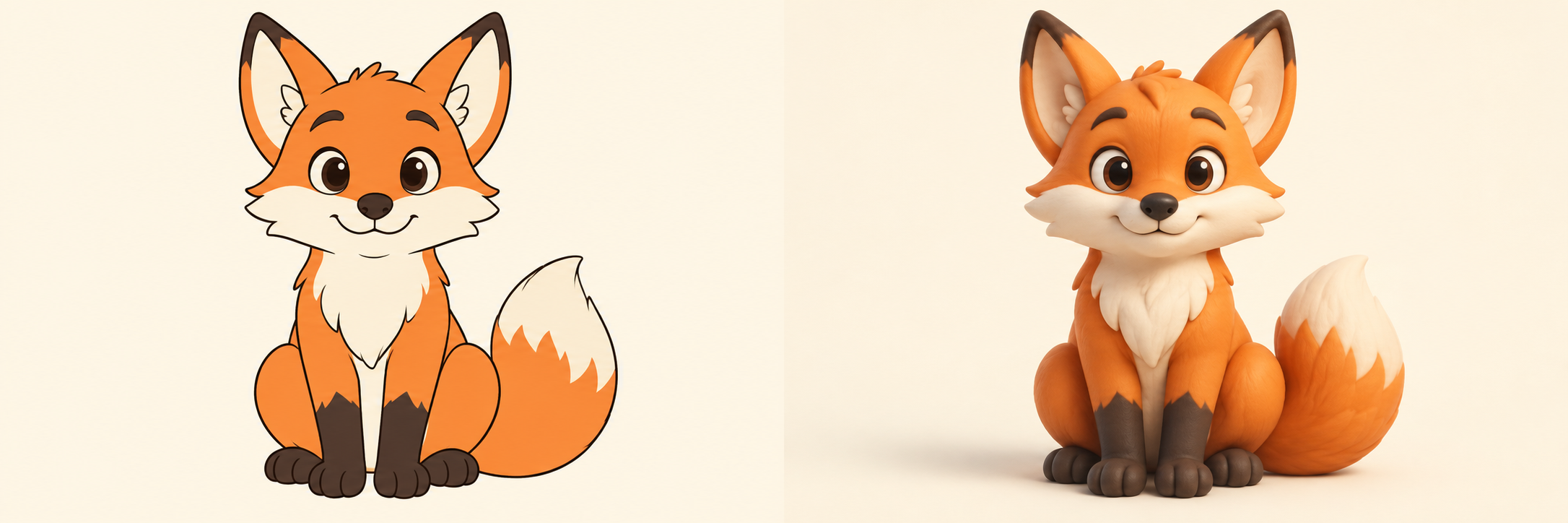
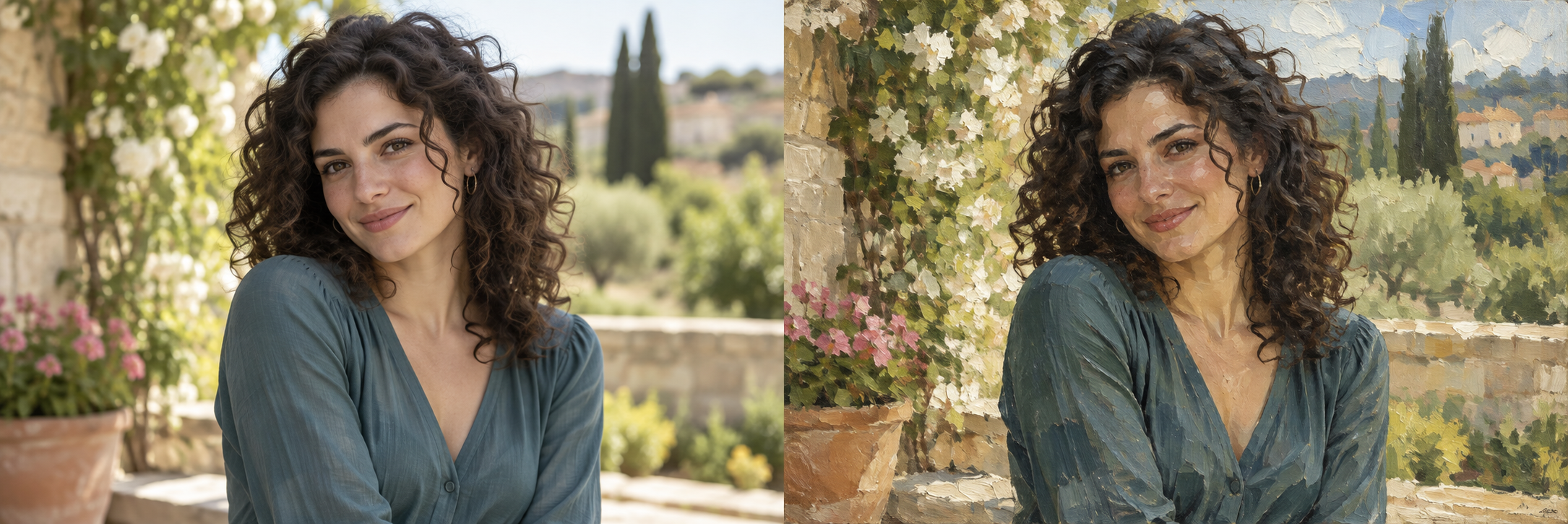
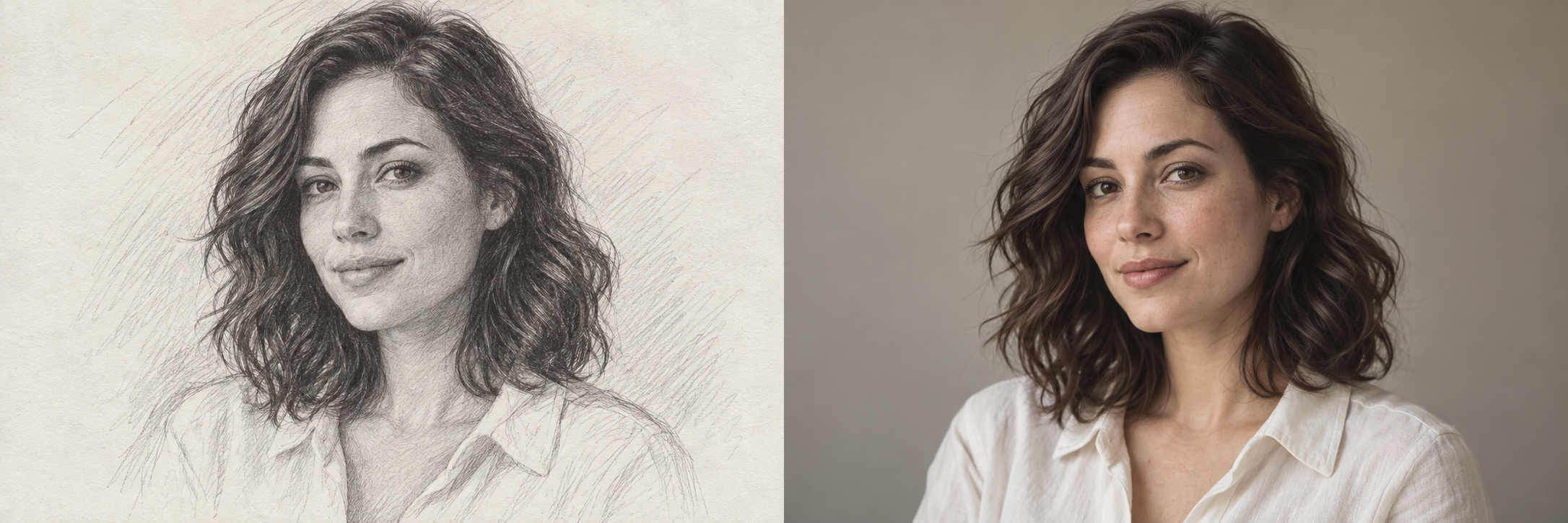
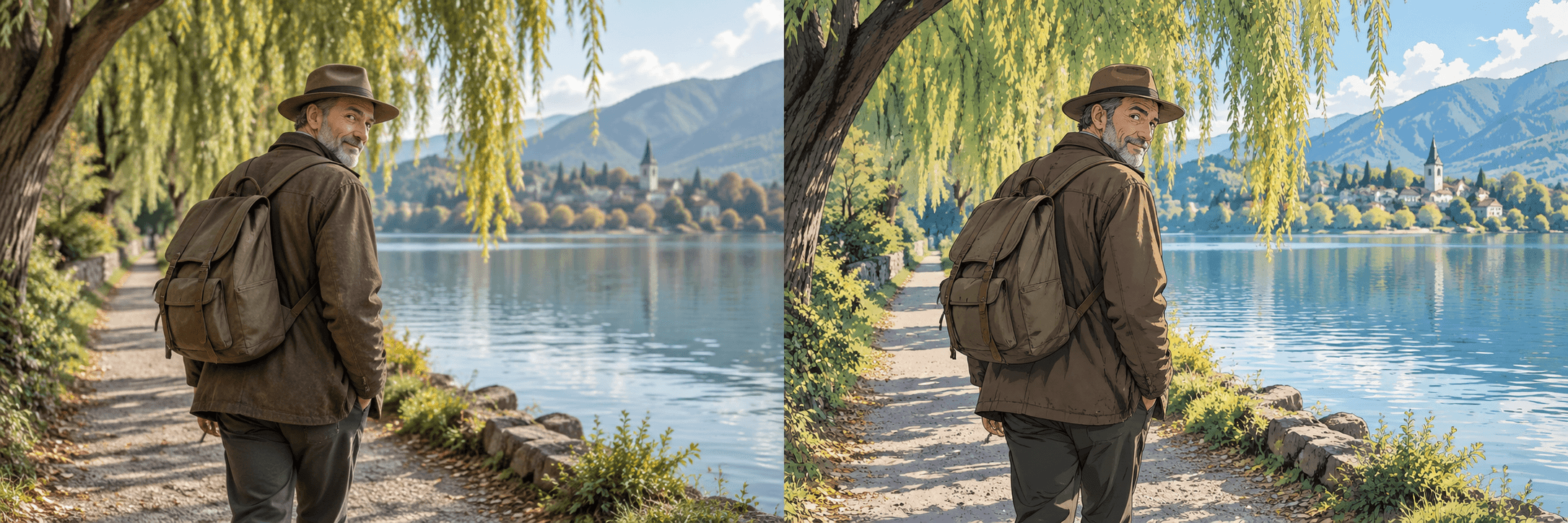
Give a familiar photo a new illustrated look. Photo to Anime uses your uploaded image as a reference for an anime-style portrait, pet illustration or scene, with optional instructions for the colors, lighting and setting.
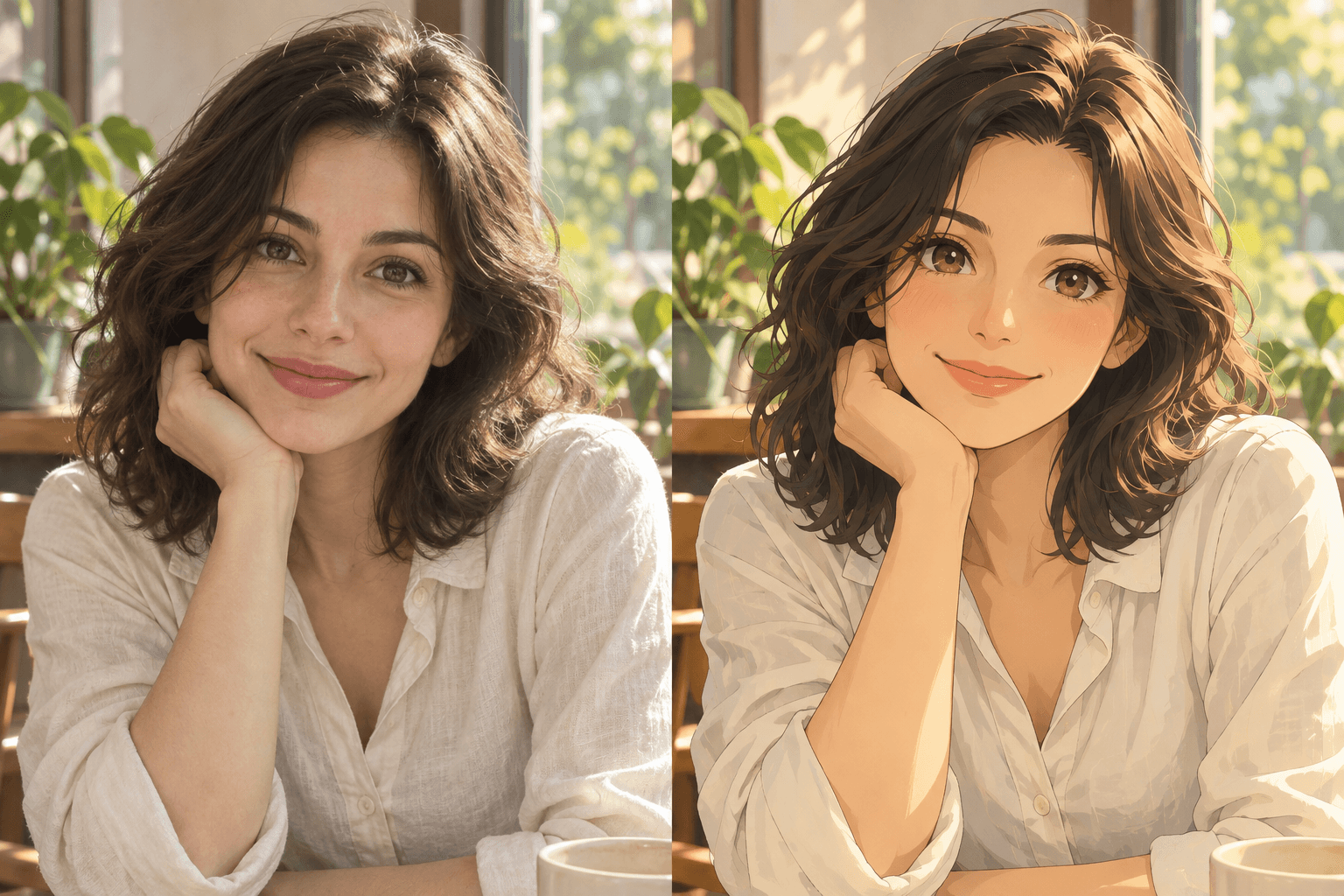
Your photo, reimagined as anime
Start with a selfie, a pet photo or a favorite view. Your reference supplies the subject and scene; the anime treatment reinterprets them with illustrated detail. For portraits, use a clear, well-lit face and review the likeness in the finished image.
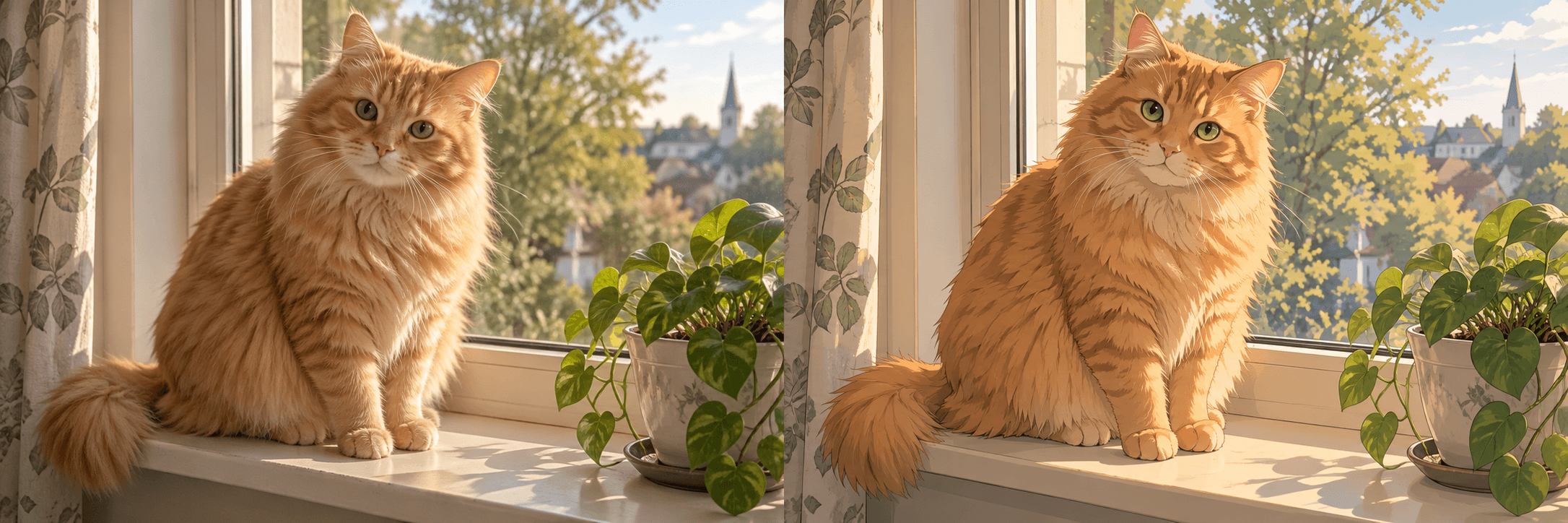
Describe the look you want
Use Other ideas to add details such as “soft pastel colors,” “warm sunset lighting” or “a quiet garden background.” This step is optional: leave it empty to use the default anime-style direction. Describe the details you want to keep as well as the changes you want.
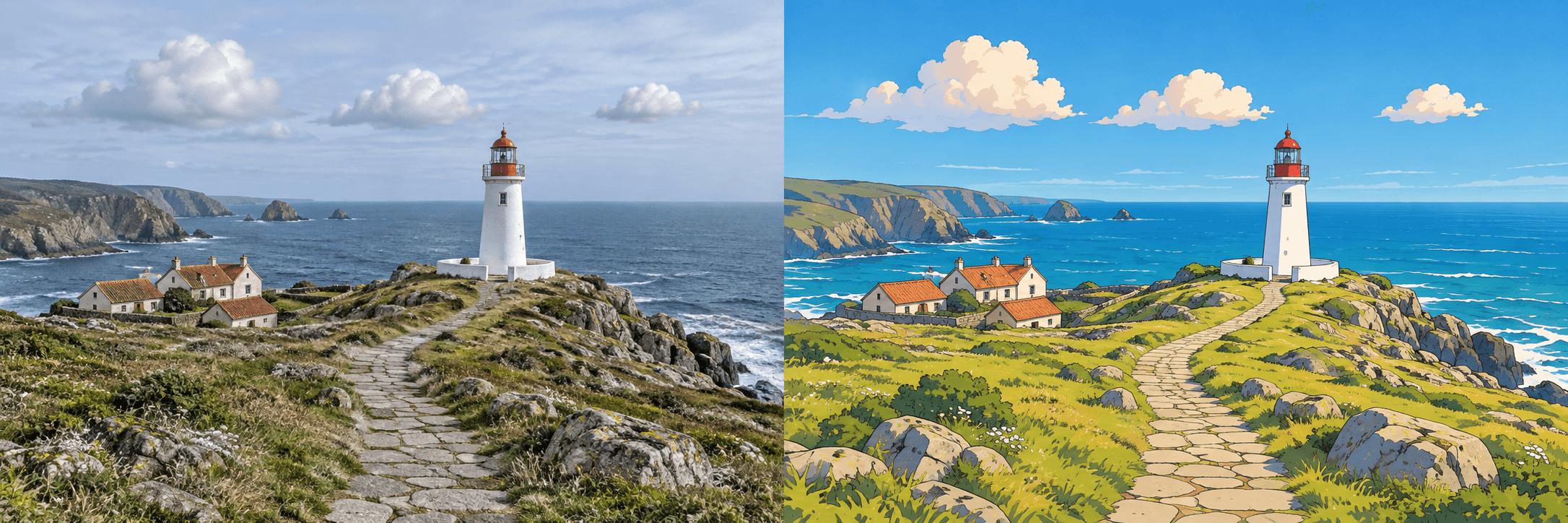 3:2
3:2Choose a shape that fits
Pick 1:1 for a square profile image, 2:3 for a vertical portrait or 3:2 for a wide scene. The selected ratio guides the output shape. Give your subject room in the reference, since the generated composition may differ from the original crop.
Keep your creations private
Guest results are public. Log in to turn on Private gallery; it is on by default for signed-in accounts. Your uploaded photo and prompt remain private in both modes. Signed-in users can change their own completed images’ visibility in My creations.
How to use Photo to Anime
Start with your idea, choose your settings, then review the finished image.
Upload your photo
Drop a JPG, PNG or WebP into the upload area, select Upload image, or paste a copied image with ⌘V / Ctrl+V. Files can be up to 20 MB. Choose a sharp photo with a clear subject, and use a photo you own or have permission to edit.
Choose your style and image shape
Add optional color, lighting or background ideas, then select 1:1, 2:3 or 3:2. Log in and leave Private gallery on to keep your result private. No written prompt is required for the default anime treatment.
Generate, compare and download
Submit as a guest using the daily free allowance shown above, or log in to use account credits. Compare and download your result. Signed-in tasks also appear in My creations; guest tasks stay associated with this browser session.
Who can use Photo to Anime?
Find a starting point that fits what you want to make.
Anime fans
Make an anime-style version of your own portrait for a profile picture or personal collection. Add a color palette or setting that fits the character you have in mind.
Pet owners
Give a favorite pet photo an illustrated treatment. Start with a clear view of the face and mention distinctive markings you want the image to retain.
Social media creators
Create an illustrated image for a profile, post or story idea. Choose the shape for your layout, then review the finished image before adding text or publishing it.
Travel and memory keepers
Reimagine a holiday photo, a familiar street or a meaningful place as an anime-style scene. Add a mood such as a sunny afternoon or a softly lit evening to guide the atmosphere.
Frequently asked questions about Photo to Anime
What photos work best for an anime conversion?
Use a sharp, well-lit photo with a clear main subject. Portraits, pet photos and landscapes can provide a starting point. Avoid heavy blur, very dark images or a face that is mostly hidden. The upload accepts JPG, PNG and WebP files up to 20 MB.
Do I need to write a prompt?
No. Uploading a photo is required, but Other ideas is optional. Leave it empty for the default anime-style illustration, or add a short description of the colors, lighting, clothing or background you want.
Will the anime image look exactly like my photo?
The result is a new illustration, not an exact filter over your original. Facial features, expressions, markings and background details may change. Review those details before choosing an image to keep or share.
Can I generate an anime image right now?
Upload your photo, choose your settings and select Generate image. Use the displayed guest allowance for a public image, or sign in to use account credits and choose privacy.
How many credits does Photo to Anime use?
Guests receive 1 free public generation per day, resetting at 00:00 UTC. Signed-in tasks cost 5 credits, reserved on submission and settled on success.
Are my photo and generated image private?
Your reference photo and prompt stay private. Guest results may appear publicly; log in before generating if you want a private result. Signed-in accounts default to Private gallery on and can change visibility for their own tasks in My creations. Signing in does not transfer earlier guest tasks.
What if my image does not finish generating?
Use Refresh status on the result card, or My creations for signed-in tasks. Confirmed failure returns the guest attempt or releases account credits. Pending or unknown tasks retain their allowance while the outcome is checked. Keep the guest session cookie to access your task.