 Picmira
Bulin 47 AI Video Generator
Your photo, a red-lit crowd performance. Upload one portrait for a Bulin 47-inspired video with rhythmic movement and original sound. No prompt needed.
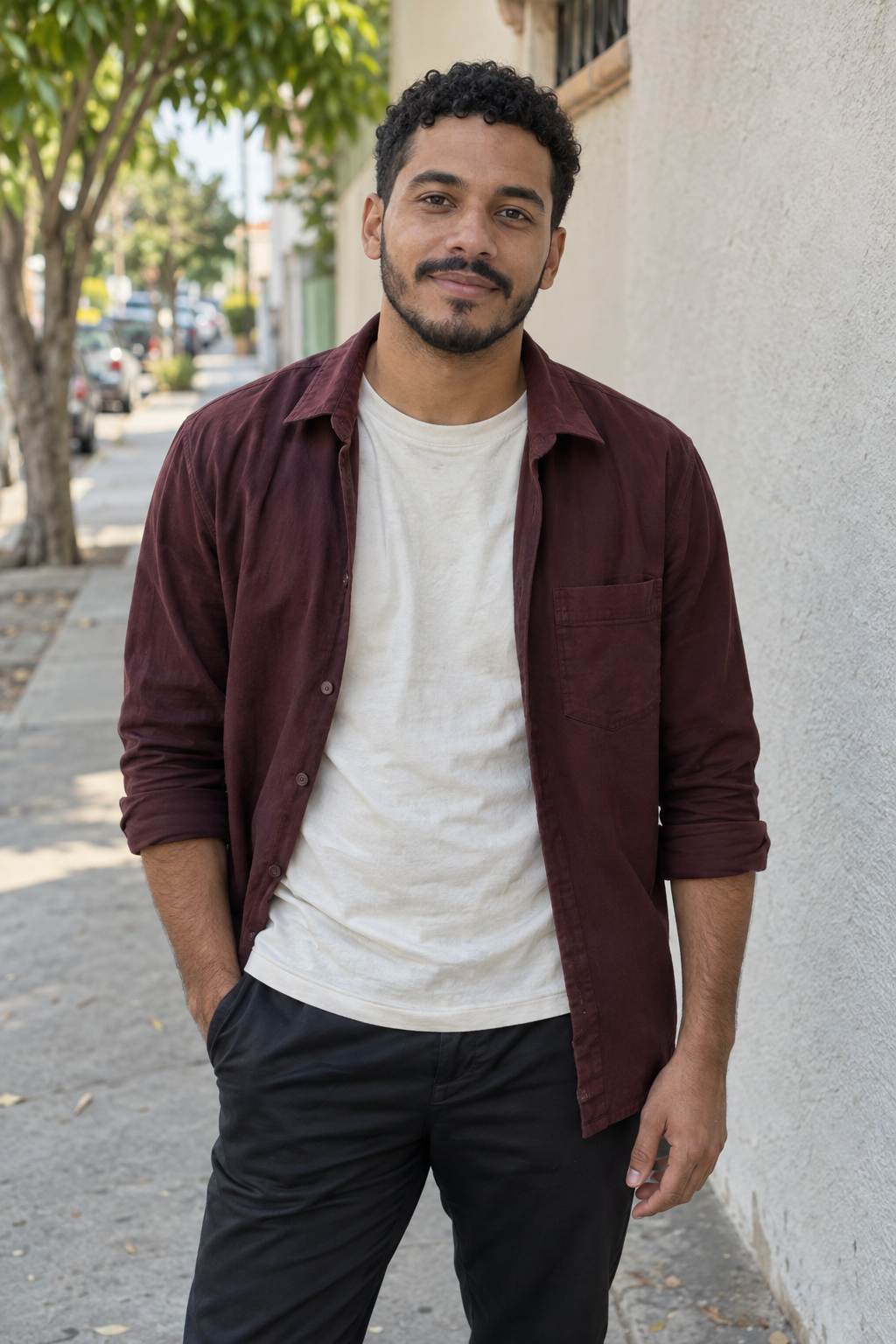
One photo, a new performance
This portrait made the video above. Play it and turn on sound to see the actual result.
Credits for your next performance
Make a short test, then try another take. Buy Picmira credits here and keep creating on this page.
Your credits belong to your Picmira account and work across Picmira image and video tools. No subscription is needed for a credit pack.
Compare monthly plansLoading credit pack…
Features of Bulin 47 AI Video Generator
Bulin 47 AI videos place a new performer inside a crowded, red-lit scene. Picmira first combines your portrait with a preset entrance-and-stairway scene, then animates that finished image. This helps keep your face and the crowd composition together. The result is a new AI performance with generated sound; it does not reproduce the original clip’s exact movement or audio.
One portrait, one lead performer
Start with a clear photo of one person facing the camera. A head-and-shoulders portrait helps the model see the face and hair. Upload, drop or paste your image; there is no second performer to set up and no timeline to edit.
A crowded scene prepared for you
Your portrait becomes the central performer in a red-lit entrance, surrounded by close onlookers and someone filming in the foreground. The scene is prepared before animation begins. Small head turns, expressive hands and crowd reactions give the finished clip a candid phone-video feel.
Movement and original sound together
The preset asks for a dembow-style beat and a short Spanish freestyle vocal alongside the video. Listen to the actual output: wording, pronunciation and musical detail can vary. You do not need to upload an audio track or write lyrics. This is an original performance, not the original Bulin 47 song, an artist voice clone or a guarantee of precise lip synchronization.
Choose a short test or a longer performance
Start with the suggested settings, or choose 5, 10 or 15 seconds, an available quality and 9:16, 16:9 or 1:1. The form updates the credit cost before you submit. Watch the finished MP4 with sound, check the face and movement, then download it or revisit it in My creations.
How to use Bulin 47 AI Video Generator
Add your portrait, choose your output settings, and create a new performance.
Add one clear portrait
Upload, drop or paste a JPG, PNG or WebP up to 20 MB. Use your own photo or a photo you have permission to animate. Choose one visible face in even lighting, without sunglasses or an object covering it.
Keep the preset or choose your settings
Keep the suggested settings for a first test, or choose the length, quality and shape. Review the credit cost and Private gallery setting. If you need credits, buy a pack on this page; checkout opens in another tab so your photo stays in place. Sign in with Google when prompted, then select Generate video.
Play, review and download
The result area first shows Preparing your scene, then Creating your video. Both steps are included in the displayed credit cost. Play it with sound and check the face, hands, movement and audio before sharing. Download the MP4 or open My creations to find the task later. A new generation produces a different performance.
Who can use Bulin 47 AI Video Generator?
Find a starting point that fits what you want to make.
People trying the trend
Explore a fictional performance featuring your own likeness without learning a video editor. Use a short clip first to see whether the movement and generated style fit your idea.
Short-video creators
Create a new portrait-led scene for a Reel, Short or TikTok. Choose a format that fits your post, review the actual result and identify it as AI-generated where the platform asks.
Friends making a playful surprise
Animate a willing friend’s portrait in a lively red-lit crowd scene. Keep the result private while you check it, then share the downloaded clip with them.
Creators comparing photo-to-video effects
Try the same portrait at different durations or quality levels to compare facial consistency, movement and sound. Each attempt uses the credits shown before submission; a longer clip does not guarantee a closer likeness.
Frequently asked questions about Bulin 47 AI Video Generator
Can I buy credits without a subscription?
Yes. The credit pack on this page is a one-time purchase for your Picmira account, with no automatic renewal. Its current price, credit allowance and validity are displayed before checkout. Credits can be used across Picmira image and video tools. The estimated video count changes with the settings you choose.
Will buying credits clear my uploaded photo?
Checkout opens in a separate tab. Keep this tool page open and your selected photo and settings will remain here. After payment, return to this tab to refresh your balance. If confirmation takes longer, use Refresh payment & credits or check your orders in Billing. Reloading or closing this tool page clears an unsubmitted photo.
Is the example a real generated result?
Yes. The example shows the two-stage approach using the AI-made portrait beside it: first compose a scene image, then animate it for five seconds at 480p. It was made with a preset scene reference and generated animation, not presented as a customer testimonial. Try the same example photo to explore the process; a new generation will produce a different performance.
Will it recreate the original Bulin 47 video?
No. This version places your likeness into a prepared scene image, then generates new motion and sound. A scene reference guides the setting; the original video is not used as a motion or audio track. Exact choreography, camera movement, background and timing will differ. Picmira is an independent tool and is not affiliated with or endorsed by Bulin 47.
Do I need a prompt, song or reference video?
No. One portrait is enough. Picmira prepares the scene image and supplies the performance direction, and the model generates original sound with the video. The output does not contain a supplied original song; voice, words and lip synchronization can vary.
What photo works best, and which settings can I choose?
Use a sharp, well-lit portrait showing one unobstructed face. Choose 5, 10 or 15 seconds, one of the available quality levels, and 9:16, 16:9 or 1:1. The aspect ratio changes the output framing, so leave room around the subject. Exact facial preservation and hand detail are not guaranteed.
Can I use Bulin 47 AI Video Generator now?
Upload one clear portrait and choose Generate video. Sign in when prompted; your photo and settings stay on the page.
How much does a video cost?
Free guest generation is currently disabled. Log in to generate with account credits. Credits vary by duration and quality. The form shows the credit cost for your selection before submission. Credits are reserved while processing and charged on success. Confirmed failures release them.
Are my photos and videos private?
Your reference photos and topic stay private. Signed-in videos default to private; turn Private gallery off to allow public display. Guest videos are public. Manage signed-in results in My creations.
What if my video is still processing?
Keep the same task and use Refresh status. After a connection interruption, Resume request checks the same submission. Pending or unknown outcomes keep their credit reservation until confirmed. Signed-in tasks also appear in My creations.
More ways to explore
Hotel Lobby AI Video
Turn two portraits or a photo together into an original rap duet with sound.
Zombie Couple Video
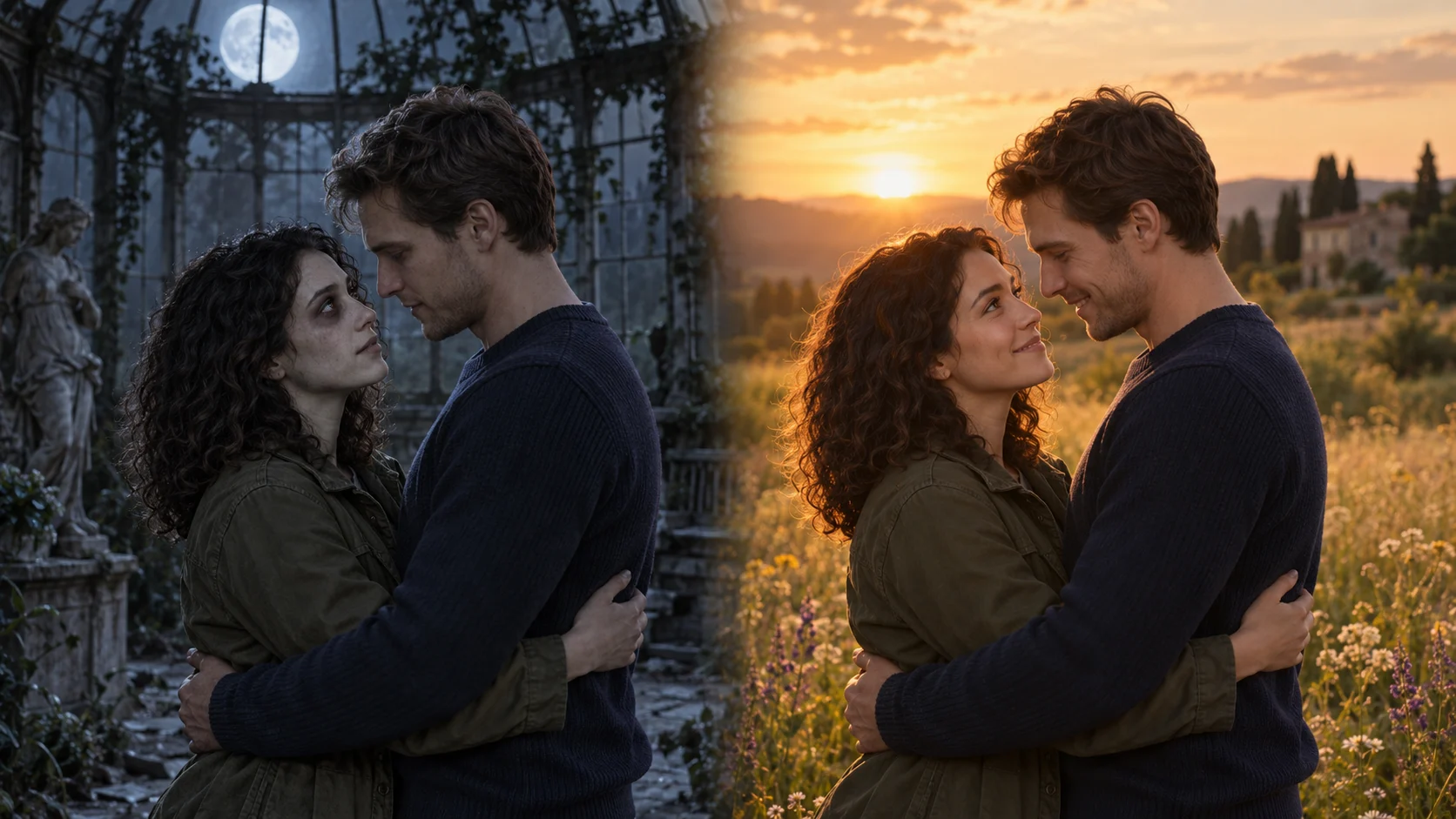
Turn two portraits or one couple photo into a tender zombie reunion, with an embrace and a warm memory.