 Picmira
South Park AI Filter
Your hair, your glasses, your wonderfully blank stare. Turn a photo of yourself, friends or your pet into a paper-cutout cartoon.
Features of South Park AI Filter
See yourself in a world of round heads, tiny pupils and flat paper shapes. The South Park AI Filter starts with your photo and redraws its subjects in a simple cutout style. Pick a scene to supply the setting, then add any details you want kept. Use the result for an avatar, a group-chat joke or a before-and-after post. You get one still image to review and download.
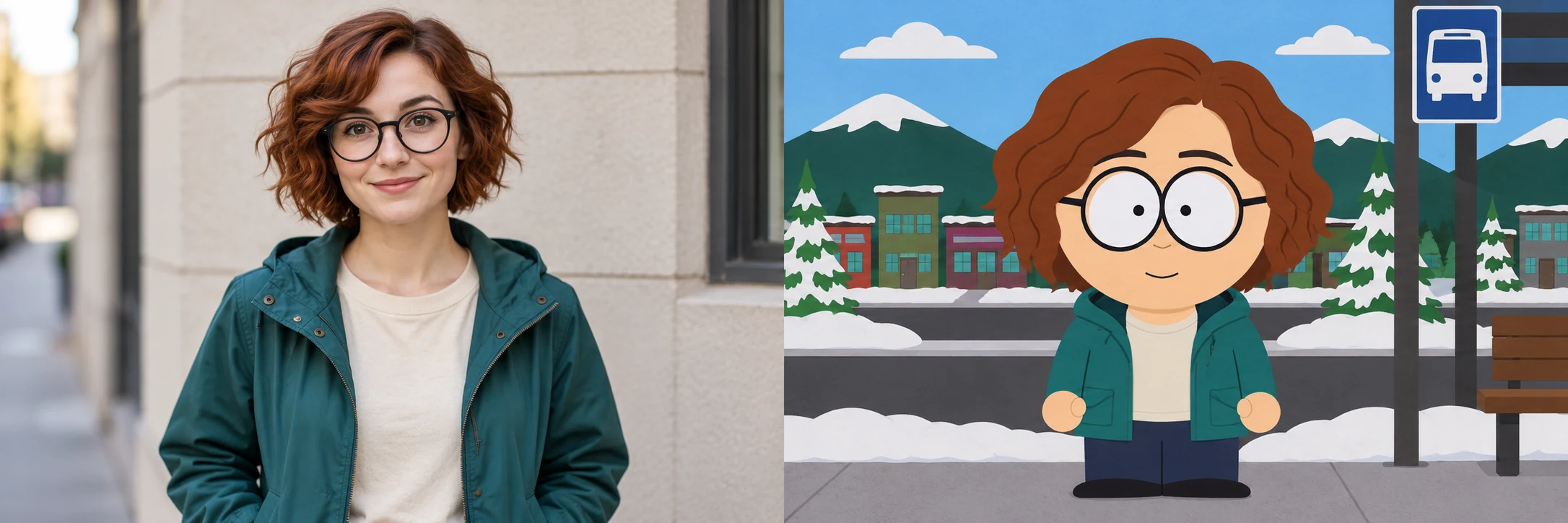
Your photo, a paper-cutout character
Upload a clear selfie or portrait and give it a completely different visual treatment. The filter asks for round heads, oval eyes, a small mouth and simple flat colors across both the character and the background. Hair, glasses, facial hair and clothing help the cartoon remain recognizable. Name an important detail in Other ideas when you want to emphasize it; AI can still change small features.
A scene for your kind of humor
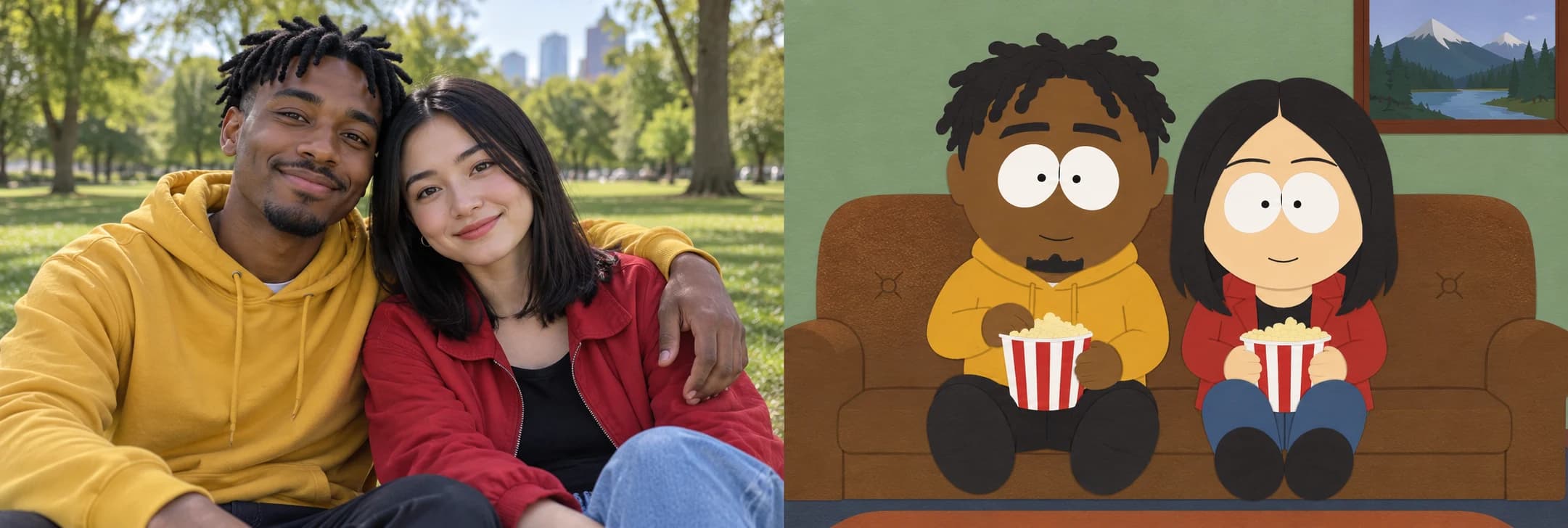
Try a snowy bus stop, a classroom or the deliberately simple flap-head variation. Building a snowman and Friends on the couch work with a shared photo, while Pet in the snow gives an animal its own setting. Each preset supplies written scene directions. Choose Custom to describe another location, or add an expression in Other ideas without starting from a blank prompt.
 3:2
3:2Bring your friends or your pet
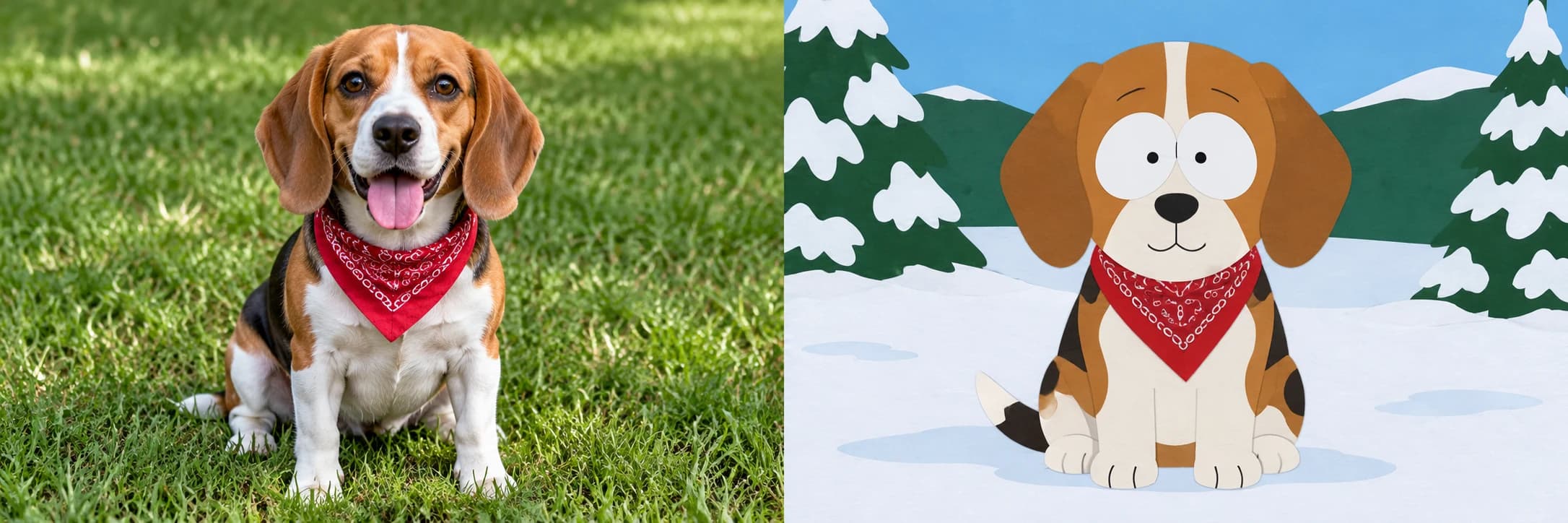
Use one photo with everyone you want included. The filter asks to preserve the subject count and left-to-right order, so a solo picture stays solo and friends remain together. For pets, a clear view of the ears, coat markings and collar gives the model useful details. Check every subject in the result before sharing: small faces, overlapping bodies and busy photos can be harder to interpret.
Make the before-and-after reveal
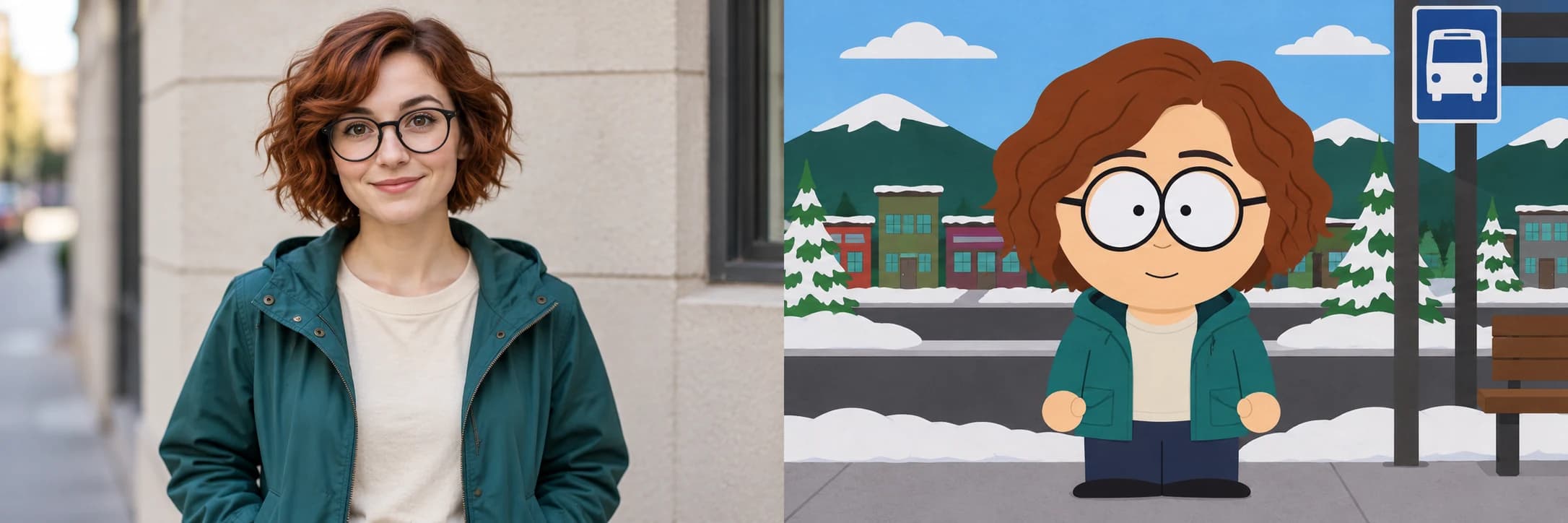
Choose square 1:1 for an avatar, portrait 2:3 for a taller composition or landscape 3:2 for more room. When generation succeeds, compare the image with your uploaded photo and download the PNG. Keep your original to build a carousel or use both images in a video editor. This tool creates the cartoon picture; music, falling-sign transitions and animation are separate editing steps.
How to use South Park AI Filter
Start with your idea, choose your settings, then review the finished image.
Upload a clear photo
Choose one JPG, PNG or WebP up to 20 MB. Use a well-lit portrait, a shared photo with visible faces or a pet photo with clear markings. Include the clothes and accessories you want the cartoon to keep. Only use photos you have permission to upload.
Choose a scene and personal details
Pick one of the six scenes or describe a custom setting. Other ideas is optional: leave it empty to use the preset, or mention your exact hair color, glasses or a preferred expression. Select the image shape and review your privacy choice and the displayed cost.
Generate, compare and download
Create your image, then inspect the result alongside the original. Check hair, clothing and every person or pet before downloading. If processing is still underway, refresh the same task instead of submitting again. Signed-in users can return to their images in My creations.
Who can use South Park AI Filter?
Find a starting point that fits what you want to make.
Avatar makers
Give your profile a flat cartoon version of yourself. A clear portrait and square crop keep your hair, glasses and expression easy to recognize at a small size.
Friends and couples
Turn a shared photo into a couch scene or a snowy outing. Use it as a group-chat picture, a personal greeting or a playful memory of a day together.
Pet people
See your dog or cat as a paper-cutout animal. Start with a photo that shows their ears, fur pattern and favorite bandana or collar.
Social creators
Pair your original photo with the cartoon for a reveal post. Add your own caption, or take the two images into your preferred editor to build a short video.
Frequently asked questions about South Park AI Filter
What is the South Park AI Filter?
It is a photo-to-cartoon tool that redraws the subjects in a flat paper-cutout style associated with South Park. Upload a photo and select a scene instead of manually assembling a character from separate eyes, hairstyles and clothes.
Is this an official South Park tool?
No. Picmira is not affiliated with or endorsed by South Park or its creators. The filter creates an original cartoon interpretation of your photo rather than placing you alongside characters from the show.
Will the cartoon look exactly like me?
Exact likeness is not guaranteed. The style simplifies most facial detail, so hair color, hairstyle, glasses, facial hair and clothing become especially important. Use a clear photo and mention any detail that matters in Other ideas. Review the generated result before sharing it.
Can I use a photo of two people or a pet?
Yes. Upload one shared photo for friends or a couple, or one photo of your pet. The scene directions ask to preserve the original subjects without adding people. Keep faces visible and avoid crowded or heavily cropped photos. Pet in the snow asks to preserve the animal species, coat markings and accessories.
Does it create the falling-sign video from social media?
No. This tool produces a still image. To make a video reveal, download your cartoon and combine it with the original photo in a video editor, then add your own transition and sound.
Can I use the filter without writing a prompt?
Yes. Upload a photo and keep the default scene, or choose another preset. The scene supplies the directions automatically. Other ideas is optional, and Custom lets you describe a different setting when you want more control.
What do the example pictures show?
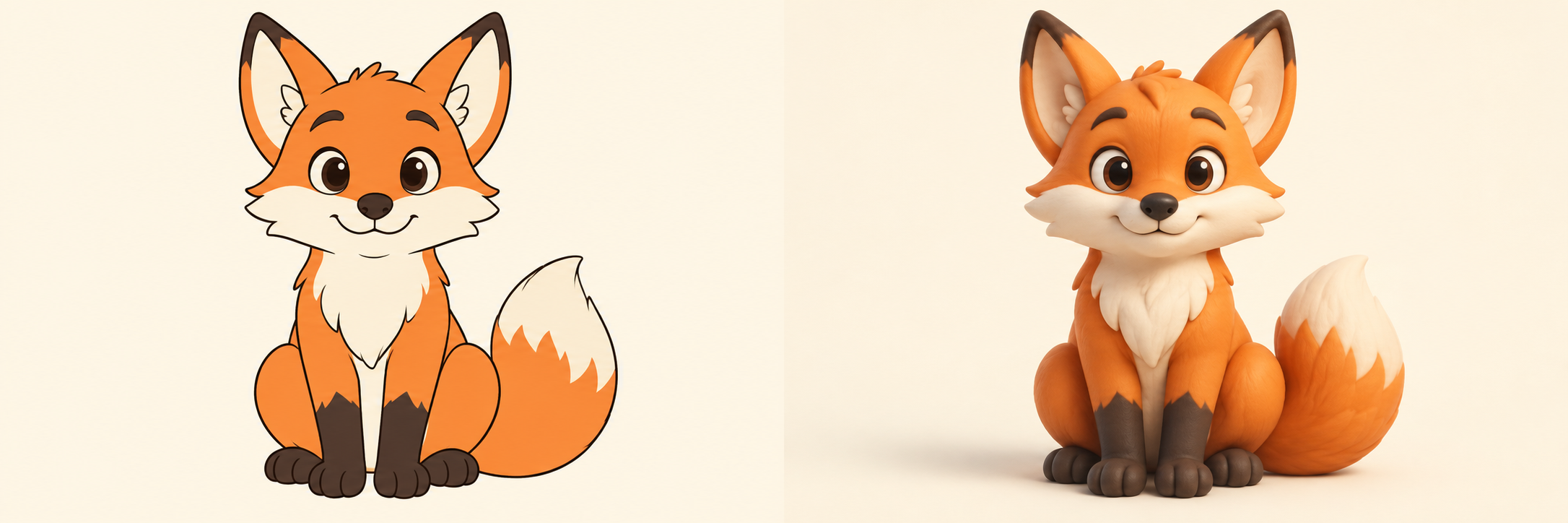
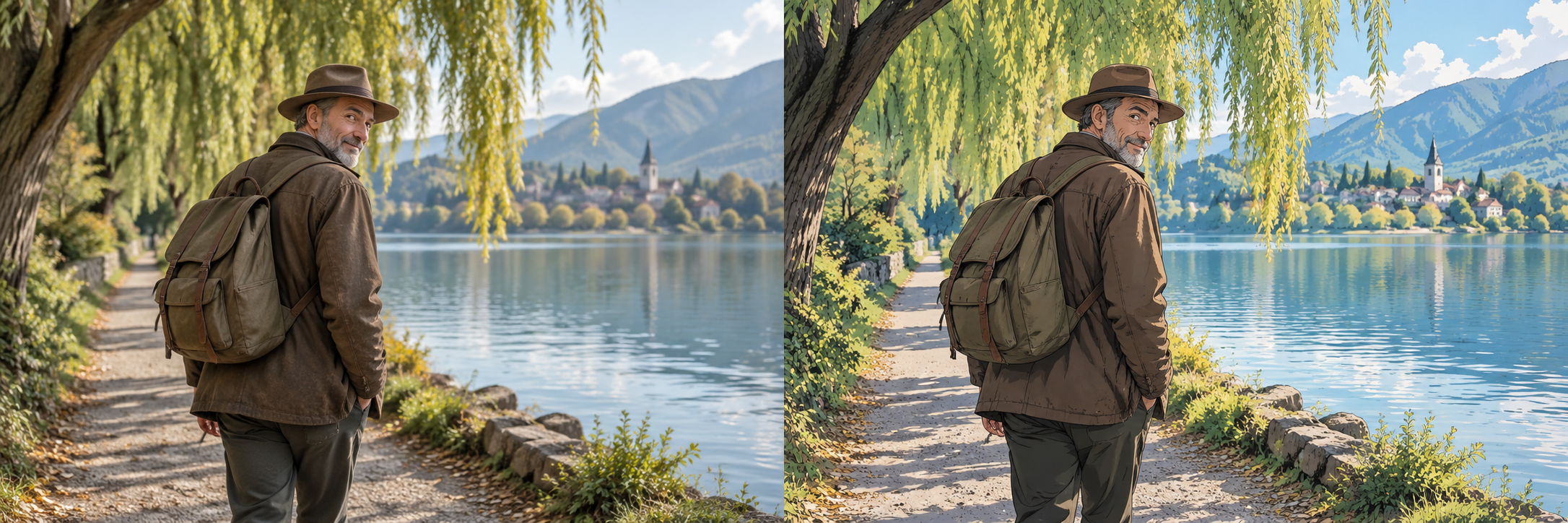
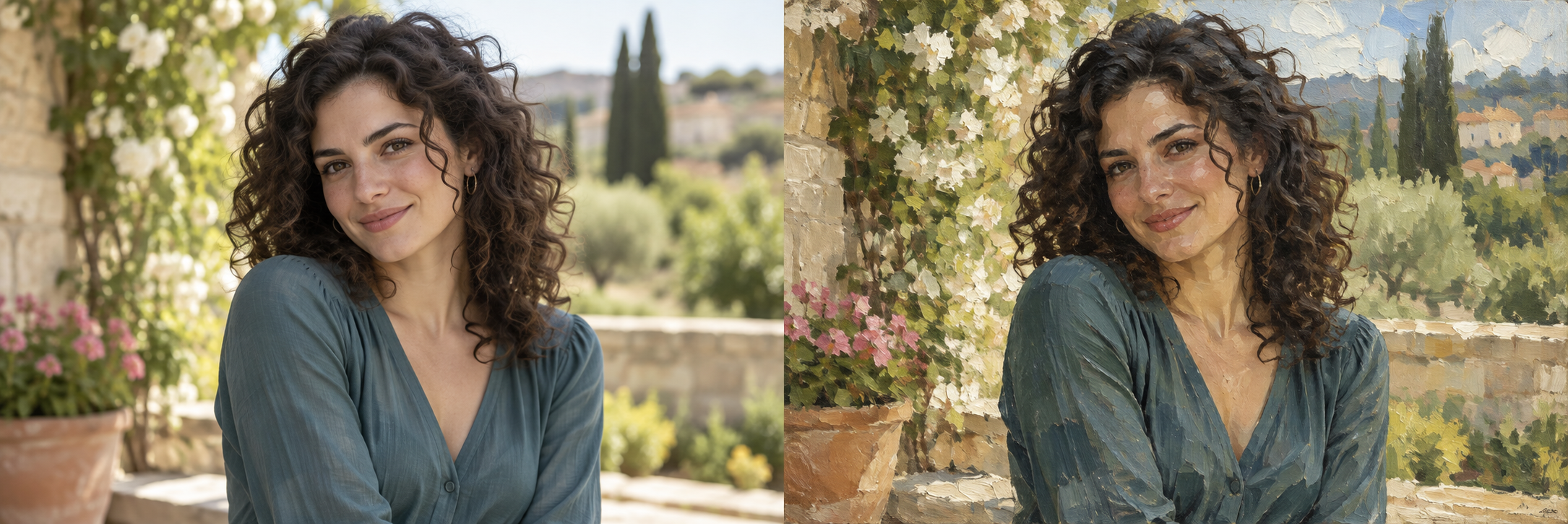
The pictures are AI-created illustrations of the photo-to-cutout idea, using fictional subjects. They show possible visual directions rather than verified outputs from this Picmira tool. Your own photo, selected scene and generation will produce a different result.
Is this tool available to generate images now?
Choose your settings, then select Generate image. Use the displayed guest allowance for a public result, or sign in to generate with account credits.
How many credits does one task cost?
Guests receive 1 free public generation per day, resetting at 00:00 UTC. Signed-in tasks cost 5 credits; review your balance before submitting. Credits are reserved during processing and settled on success.
What does Private gallery control?
Guests generate public results. Log in to enable Private gallery, which defaults to on for signed-in users. Turning it off allows the completed image to appear publicly. Reference uploads and prompts remain private. Signed-in users can change visibility for their own tasks in My creations.
What should I do if a task fails or its outcome is unclear?
A verified failure releases reserved credits. An unknown or unconfirmed outcome keeps the reservation while the status is checked. Refresh that task’s status instead of assuming failure or starting another purchase or generation to bypass it.