 Picmira
AI Age Filter
Upload a clear portrait and choose a target age. Explore an older or younger look without writing instructions, with optional notes for details to preserve.
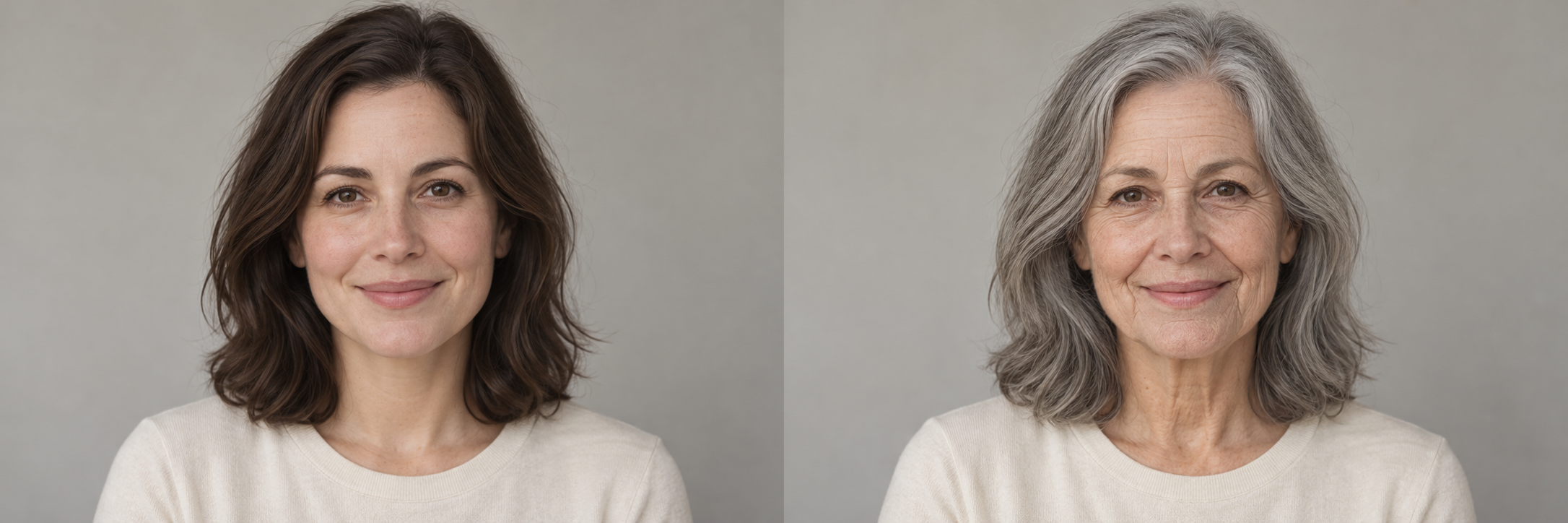
Features of AI Age Filter
Try a different apparent age using your portrait as the visual reference. Drag the age slider to choose a target age from 1 to 100 years. Review the face, hair and surroundings; the result is a creative interpretation.
Explore older and younger looks
A clear portrait provides the starting point for a younger or older appearance. The age treatment may interpret skin texture, facial lines and hair color while aiming to keep the subject recognizable. Compare the result with your original photo before sharing it.
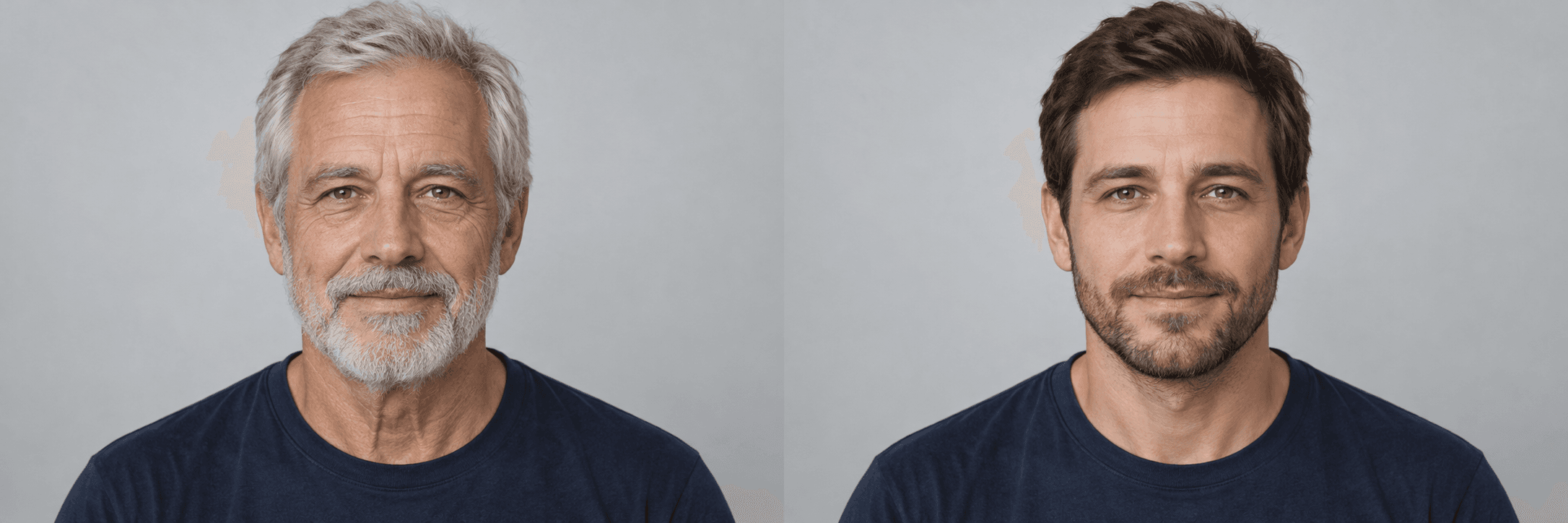
Choose a target age
Move the age slider from 1 to 100 years, one year at a time. The selected age appears above the slider and starts at 40. Other ideas is optional for details such as outfit, expression or backdrop.
 3:2
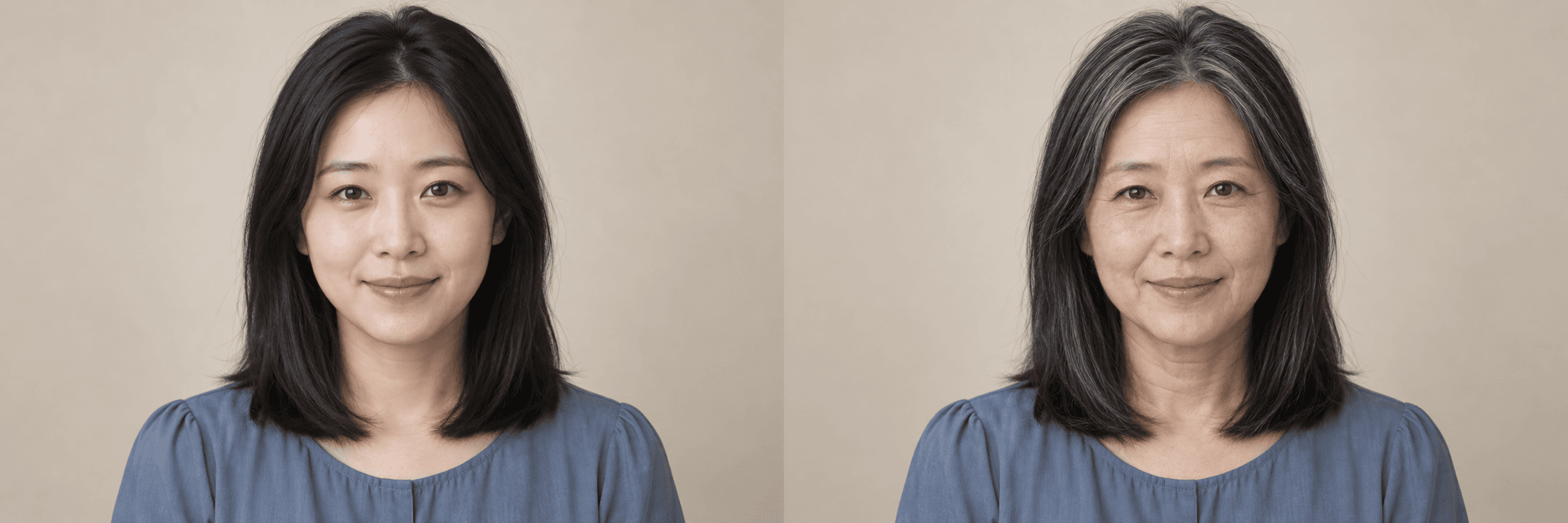
3:2Frame the portrait for your project
Choose 2:3 for a vertical portrait, 1:1 for a square profile image or 3:2 for a wide composition. Use a well-lit photo with one clearly visible face and enough space around the head. The selected shape guides the output, but framing and facial details may change.
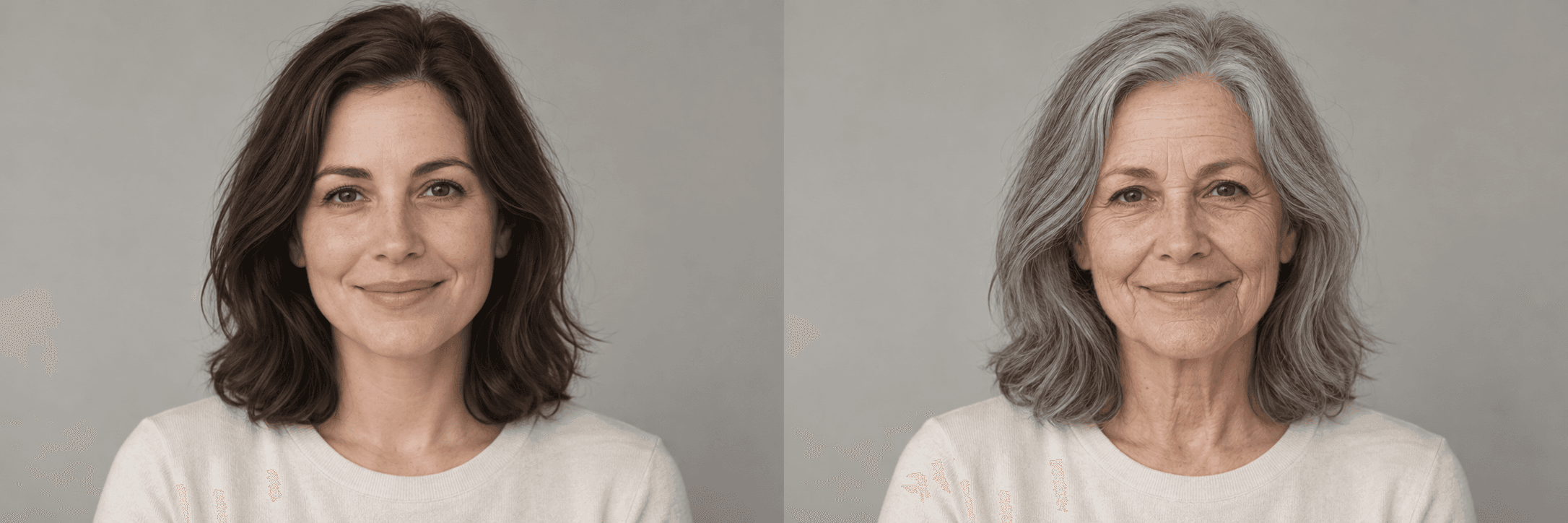
Choose how your result is shared
Log in and leave Private gallery on if you want the completed age-effect image to stay private. Signed-in accounts default to private; guest results are public. Your uploaded reference and instructions stay private in either mode, and signed-in users can change result visibility in My creations.
How to use AI Age Filter
Start with your idea, choose your settings, then review the finished image.
Upload or paste a clear portrait
Choose a JPG, PNG or WebP up to 20 MB that you have permission to edit. Select Upload image, drop the file into the upload area or paste a copied image with ⌘V / Ctrl+V. A front-facing or slightly angled portrait with one visible face makes a useful starting point.
Set the target age and optional details
Drag the slider to a target age from 1 to 100, or keep the default 40 years old. Add optional preservation notes in Other ideas, choose an image shape and review gallery privacy.
Create, compare and download
Use the displayed daily guest allowance for a public image or log in to use account credits. Compare the age interpretation with your original photo, review important details and download the image. Signed-in tasks appear in My creations; guest tasks stay associated with this browser session.
Who can use AI Age Filter?
Find a starting point that fits what you want to make.
Personal portrait explorers
Try a different apparent age for a photo of yourself or someone who has agreed to the edit. Review facial features and hair as a creative possibility, rather than a forecast of how the person will actually look.
Writers and character designers
Explore younger and older visual directions for a fictional character portrait you own. Use the image to discuss a life stage, then review whether the expression, clothing and background still support your story.
Content creators
Build an age-themed visual comparison for a personal project or presentation. Share only portraits you are allowed to edit, and describe an AI-made age effect as an edited image when that distinction matters.
Family photo project makers
Explore a different life-stage interpretation for a family portrait with the subject’s permission. Keep the source available for comparison and log in for private generation when you do not want the completed image displayed publicly.
Frequently asked questions about AI Age Filter
Does the Age Filter predict how I will look in the future?
No. It creates an AI interpretation of an apparent age, not a prediction or a measurement of your real age. Genetics, lifestyle and individual changes cannot be established from this creative edit. Exact likeness and appearance are not guaranteed.
How do I choose a target age?
Drag the slider to choose an age from 1 to 100 years. Each step changes the age by one year, and the current value is shown above it. You can also focus the slider and use the arrow keys. The default is 40. Results are approximate interpretations, not exact age measurements.
What kind of photo works best?
Use a clear, well-lit portrait with one visible face, without heavy filters or objects covering important features. JPG, PNG and WebP files up to 20 MB are supported. Group photos may produce ambiguous edits, so use an individual portrait and review identity and expression after generation.
Is this tool available to generate images now?
Choose your settings, then select Generate image. Use the displayed guest allowance for a public result, or sign in to generate with account credits.
How many credits does one task cost?
Guests receive 1 free public generation per day, resetting at 00:00 UTC. Signed-in tasks cost 5 credits; review your balance before submitting. Credits are reserved during processing and settled on success.
What does Private gallery control?
Guests generate public results. Log in to enable Private gallery, which defaults to on for signed-in users. Turning it off allows the completed image to appear publicly. Reference uploads and prompts remain private. Signed-in users can change visibility for their own tasks in My creations.
What should I do if a task fails or its outcome is unclear?
A verified failure releases reserved credits. An unknown or unconfirmed outcome keeps the reservation while the status is checked. Refresh that task’s status instead of assuming failure or starting another purchase or generation to bypass it.
More ways to explore
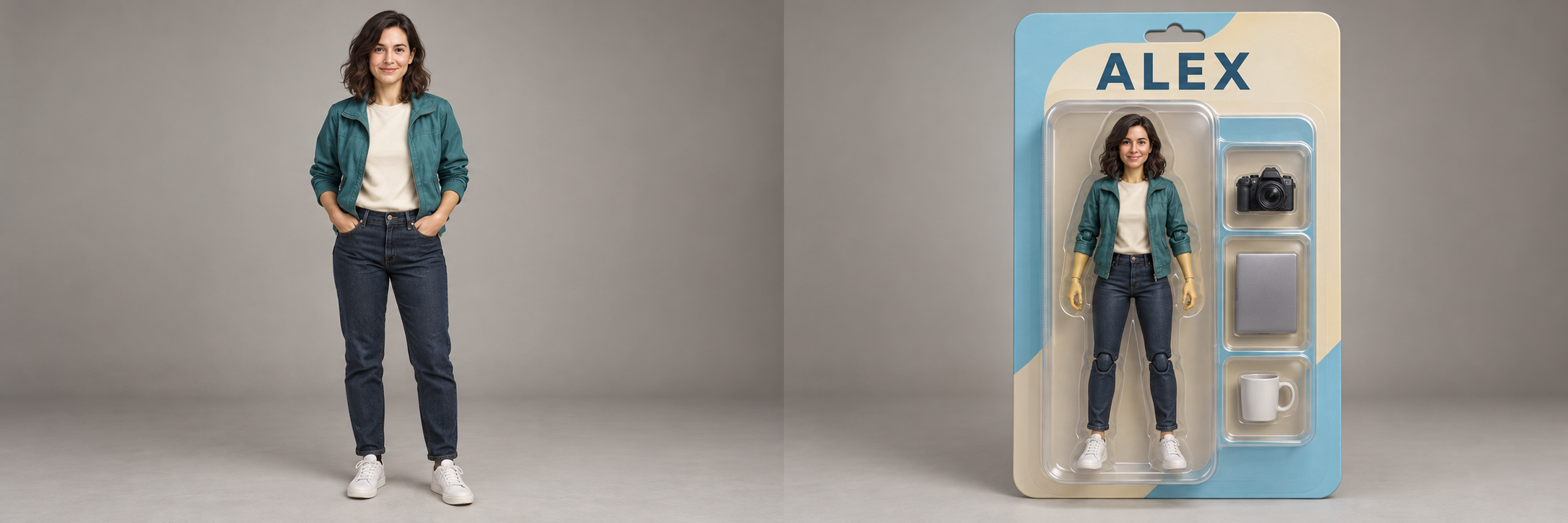
AI Action Figure Generator
Turn a portrait into a packaged action-figure image.
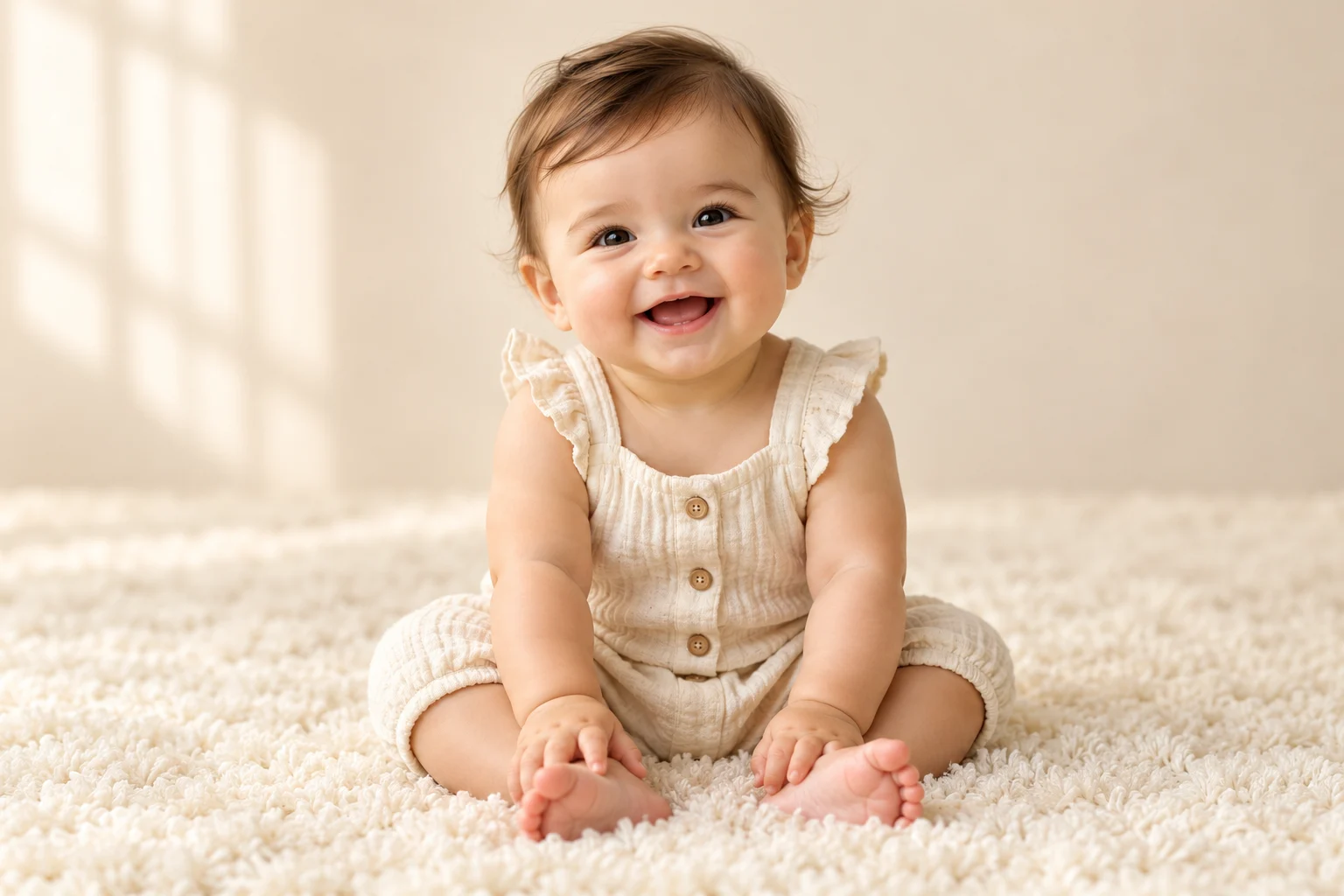
AI Baby Photoshoot
Turn one baby photo into a studio, birthday or seasonal portrait. Pick a theme and make a little memory.
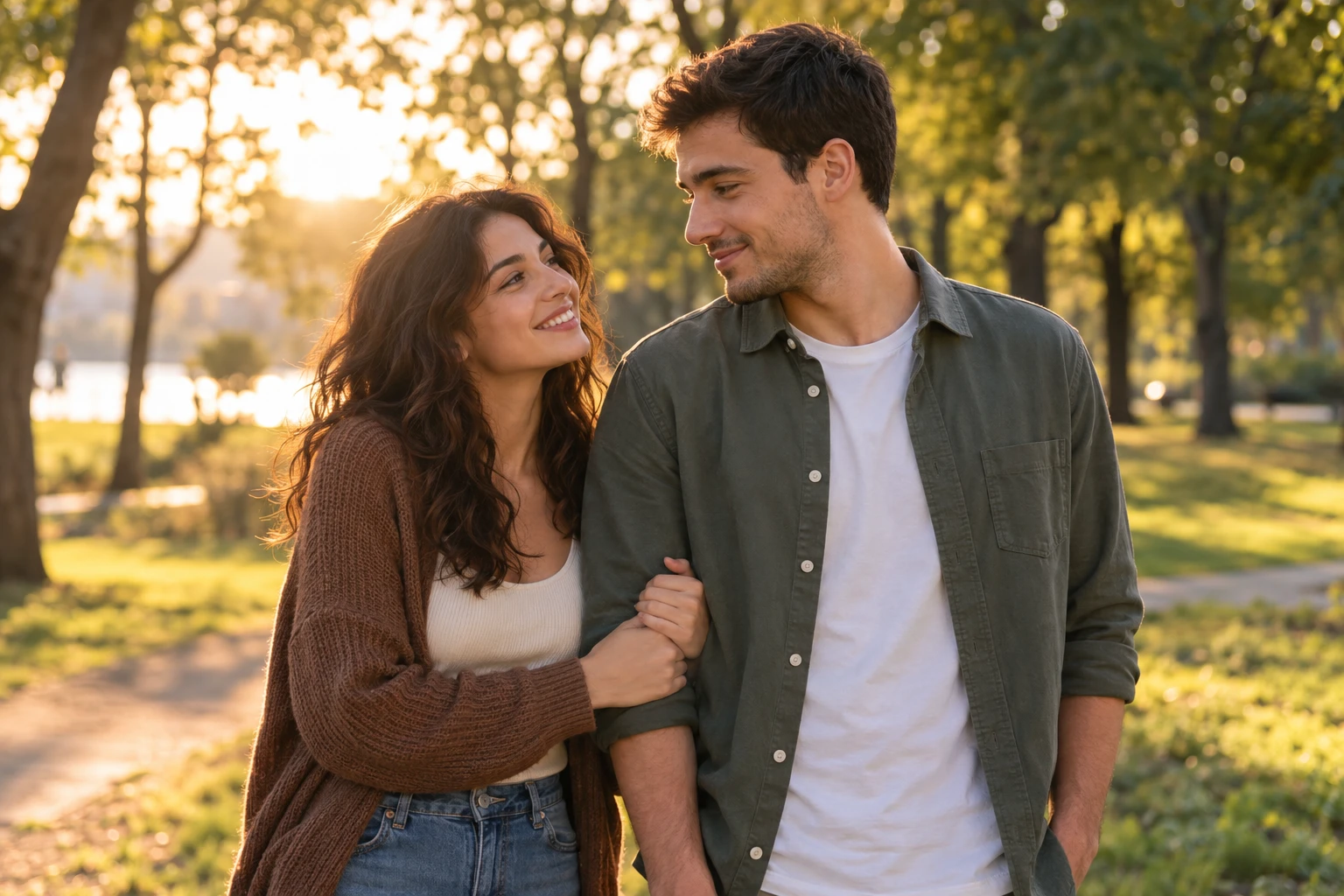
AI Couple Photo Maker
Bring two separate portraits together in one couple photo. Choose a scene and make it yours.