 Picmira
Photo-to-video guide
How to Make a Bulin 47 AI Video from a Photo
To make a Bulin 47 AI video in Picmira, upload one portrait, choose the length and format, then generate a red-lit crowd performance with original sound. You do not need to write a prompt, record yourself singing or edit a timeline. This guide walks through the first attempt and the details to check before sharing it.
Make a Bulin 47 AI video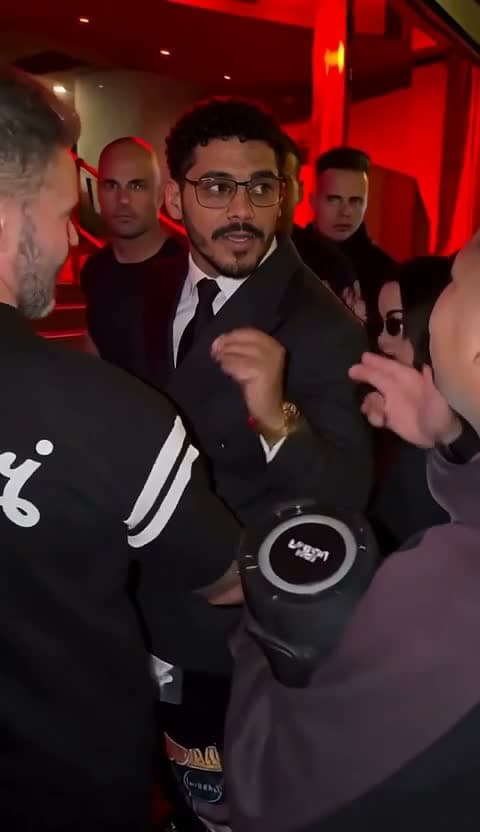
What will your Bulin 47 AI video look like?
The scene places one lead performer at a red-lit entrance, with people gathered nearby and a phone filming in the foreground. The performance combines hand gestures, small turns and crowd reactions with a generated dembow-style beat and short Spanish vocal. Your portrait provides the lead character; the surrounding scene is already set up.
Picmira first prepares a scene image using your portrait, then animates it. It creates new movement and sound rather than inserting your face into every frame of the original viral recording. Do not expect the original song, an exact dance sequence or unchanged bystanders. Play the example on the tool page to decide whether this kind of result fits your idea.
1. Choose a photo that shows the person and outfit
Use a photo of yourself or someone who has agreed to be animated. Choose one clearly visible adult, with enough detail to recognize the face. A waist-up portrait is a useful starting point when the outfit matters: the model can see the top, sleeves and how the clothing fits.
A close selfie can still provide facial detail, but it leaves more of the body and clothing for the model to invent. If you want a teal T-shirt in the result, upload a photo that actually shows that shirt. A face-only crop cannot communicate its color or shape. Avoid strong beauty filters and screenshots with interface elements.
- Keep the face readable, with both eyes visible and no strong backlight.
- Choose a frame where the intended person is unambiguous.
- Leave space around the head and shoulders instead of cropping tightly.
- Use a JPG, PNG or WebP file up to 20 MB.
2. Add your portrait to the tool
Open Picmira’s Bulin 47 AI Video Generator and find Your portrait. Choose Upload image, drop a file into the box, or select the upload area and paste a copied image with Command-V on Mac or Control-V on Windows. Check the preview before continuing; Replace image lets you correct the selection.
If you want to learn the controls first, select Try this example photo below the demo. It loads the example portrait into the form without starting a generation. You can inspect the settings and credit cost before deciding to proceed. The Bulin tool needs only one photo, with no separate scene upload or prompt field.
3. Choose the duration, quality and shape
Start with 5 seconds at the lowest available quality to assess the portrait and scene. The duration menu offers 5, 10 and 15 seconds; use an enabled combination shown by the tool. A longer clip gives the performance more time to develop, but it does not guarantee better likeness or more accurate movement.
Choose 9:16 for a vertical post, 16:9 for a wide presentation or 1:1 for a square layout. The shape changes the space available around the lead and crowd. Higher quality may be useful for a larger display, but it will not by itself correct a changed face or outfit. Review the updated credit total whenever you change a setting.
4. Check credits and generate once
The form shows the credits required for the selected video. Use that current amount rather than a price quoted in an older guide. If you need more, the page offers a one-time credit pack; you do not need a subscription to buy a pack. Checkout opens in another tab so you can return to your photo and settings.
Select Generate video and sign in with Google if prompted. Your photo and settings are retained when you return. Signed-in users default to Private gallery enabled; review this choice before submitting. Follow the task from Preparing your scene to Creating your video. Credits are reserved during processing and returned on a confirmed failure.
5. Watch with sound before downloading
Watch the entire result, not just its opening frame. Check whether the face stays recognizable during a turn, the hands remain believable and the clothing stays consistent. Listen to the lead vocal as well as the music. A convincing still frame does not establish that motion or mouth timing works throughout the clip.
Download the finished MP4 when you are happy with it, or revisit the task in My creations. For a second attempt, change one thing you can evaluate, such as using a clearer portrait or choosing a different shape. Each new generation uses the displayed credits and can produce a different performance.
Will it keep my clothes, glasses and voice?
The current generation instructions ask for the clothing and personal accessories visible in your portrait to stay with the lead. They also tell the model not to add glasses when none are present. These are directions to a generative model, not a guarantee that every detail will survive. If the outfit is important, make it clearly visible in the source and inspect it through the whole video.
The voice is newly generated. A photo does not contain a recording of your voice, and this tool does not clone it. The preset asks for an adult lead voice consistent with the performer’s presentation, but the timbre, words and synchronization can vary. The existing example shows one generated performance, not the exact outfit, voice or movement every upload will receive.
What if the page says Resume request?
An interrupted response does not necessarily mean generation failed. If Resume request appears, use it to continue or check that same request. Do not repeatedly create new tasks to find out whether an earlier one finished.
For a saved pending request, the upload box restores its image preview or shows that the photo is already attached. A missing preview alone does not mean the upload was lost. Follow the task status and use My creations to look for the existing task before paying for another attempt.