 Picmira
Step-by-step guide
How to Turn a Photo into a Pencil Sketch
A pencil-style image replaces photographic color and texture with contours, shading and paper-like tones. The useful question is not just “does it look drawn?” but “does the drawing keep the parts of the photo that matter to me?” Here is a practical way to approach the conversion.
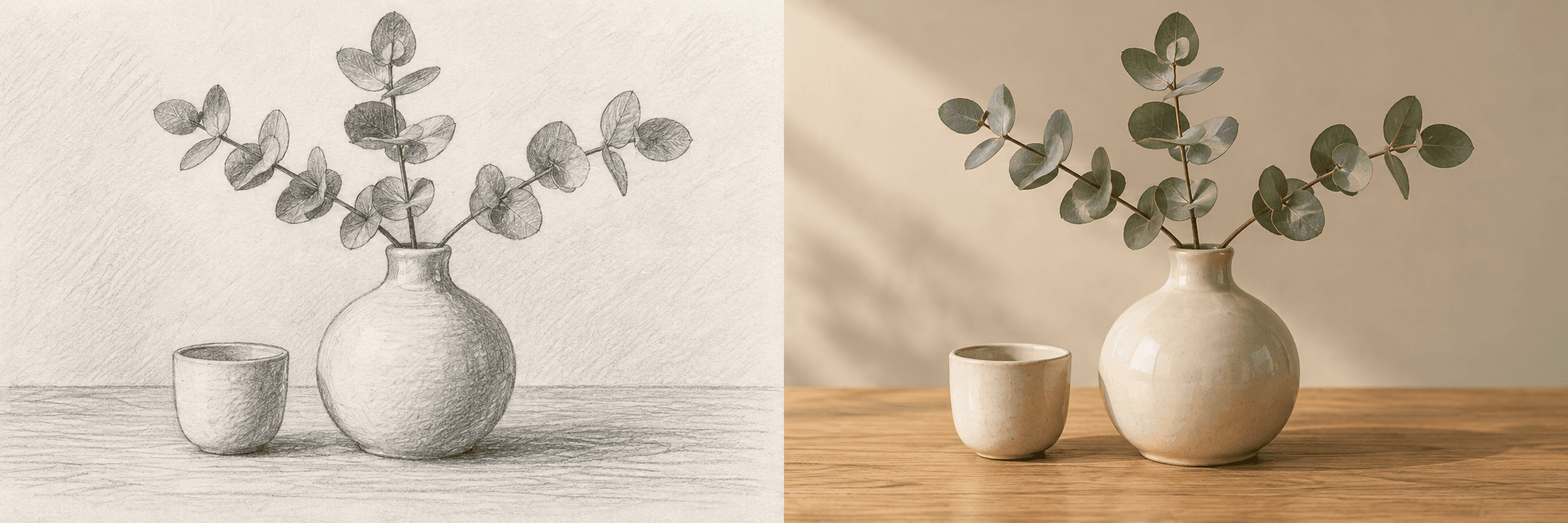
1. Choose a subject with readable outlines
Start with a portrait, pet, object or building whose main shapes are easy to see. In the still-life example above, the ceramic objects have clear silhouettes and distinct areas of light and shadow. Those are useful details to look for in your own source.
For a portrait, check the eyes and expression. For architecture, check the roofline, window spacing and vertical edges. Keep the original beside the result so you can distinguish a stylistic simplification from a change to the subject.
2. Upload the photo and choose an image shape
Open Photo to Sketch from the available tools. Upload, drag in or paste a JPG, PNG or WebP file up to 20 MB. Confirm that the preview shows the intended photograph before you generate.
Use 2:3 for a vertical composition, 1:1 for a square study or 3:2 for a wider scene. These are framing choices, not sketch styles. Leave enough room around the subject because the output may change the crop or the surrounding detail.
3. Describe a focused drawing direction
The Other ideas field is optional. Leave it empty for the default pencil-sketch direction, or describe line weight, shading and background detail. Keep the instruction focused on the drawing rather than requesting several unrelated edits.
For a portrait, ask for soft shading and a quiet background. For an object study, ask for clear contours and a visible contact shadow. Written directions guide the interpretation; they are not separate preset buttons or a promise of an exact finish.
4. Review the controls and create one task
Check the current credit cost or guest allowance shown by the tool. For a private result, sign in and leave Private gallery on. Guest results are public; reference uploads and prompts stay private.
Generate once and follow the task’s status. If it is still running or its status is uncertain, check that task before creating another. Signed-in tasks can be revisited in My creations. A new request is a separate attempt, so avoid treating repeated clicks as a way to speed up the same image.
5. Compare the drawing before downloading
Look at the main silhouette first, then the smaller details. For a face, compare expression and feature placement. For a building, look at the roof and window layout. For a still life, check that the objects have kept their shapes and arrangement.
Photo to Sketch produces a raster image in a drawn style. It is not an exact tracing, an editable vector file or a measured architectural drawing. Fine lettering and proportions may change. If a result misses the brief, identify one issue and adjust the next instruction around it.
- The main subject is recognizable.
- Contours and shadows are readable at the intended viewing size.
- Important details have not disappeared or changed unexpectedly.
- The image shape and crop suit the place you will use it.